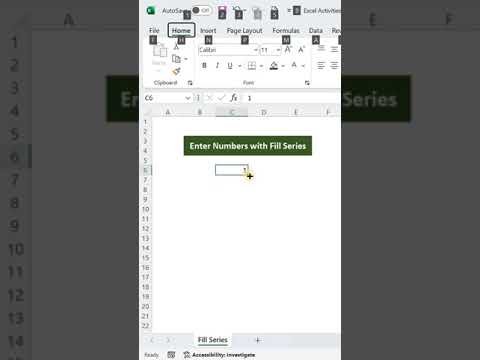
Need to fill 1 to 1000 in Excel without typing each number? This short shows two instant methods: the SEQUENCE function for Excel 2021 and Microsoft 365 and AutoFill for all other versions. Done in seconds. Duration: 0:58.
Video Transcript
In this short video we show you two fast ways to generate a number series from 1 to 1000 in Microsoft Excel without typing each number manually.
The first method uses the SEQUENCE function available in Excel 2021 and Microsoft 365. Click on an empty cell, type =SEQUENCE(1000) and press Enter. Excel instantly fills 1000 cells with numbers 1 to 1000. No dragging needed.
The second method works in all versions of Excel including older ones. Click cell A1 and type 1. Click cell A2 and type 2. Select both cells. Find the small green fill handle square at the bottom-right corner of the selection. Double-click it and Excel detects the pattern and fills the series down automatically to match the length of your data in the adjacent column. You can also drag the fill handle down manually to any row you need.
Both methods take only a few seconds. SEQUENCE is faster for a fixed count while AutoFill is more flexible when you need the series to match existing data.
Two Ways to Generate a Number Series in Excel
Microsoft Excel offers several ways to fill a column with consecutive numbers. The fastest method is the SEQUENCE function introduced in Excel 2021 and Microsoft 365. One formula generates the entire series instantly. For older versions of Excel, the AutoFill handle detects a pattern from just two cells and fills the rest of the series automatically. Both methods work in seconds regardless of whether you need 100 numbers or 10,000.
Method 1: SEQUENCE Function (Excel 2021 and Microsoft 365)
-
Click on any empty cell in your worksheet where you want the number series to begin, for example cell A1.
-
Type =SEQUENCE(1000) and press Enter. Excel immediately fills 1000 cells with the numbers 1 to 1000.
-
The series is complete. All 1000 numbers appear instantly with no dragging or manual entry required.
Method 2: AutoFill (All Excel Versions)
-
Click cell A1 and type 1. Click cell A2 and type 2.
-
Select both cells A1 and A2. You will see a small green square at the bottom-right corner of the selection. This is the fill handle.
-
Double-click the fill handle to auto-fill the series to match adjacent data, or drag it down to row 1000. Excel fills the entire series instantly.
Things to Keep in Mind
- The SEQUENCE function is only available in Excel 2021 and Microsoft 365. If you see a NAME error, your Excel version does not support it. Use the AutoFill method instead.
- SEQUENCE generates a dynamic array. If you need static values that do not change, copy the result and paste it as Values using Ctrl+Shift+V or Paste Special.
- Double-clicking the fill handle only works if there is data in an adjacent column. Excel uses that column to determine how far to fill. If the adjacent column is empty, drag the fill handle manually instead.
- To generate a series with a custom start or step, use =SEQUENCE(rows, columns, start, step). For example =SEQUENCE(100,1,5,5) gives 5, 10, 15 up to 500.
Tips for Success
- Use the Fill Series option (Home tab, Fill, Series) for precise control over start value, stop value and step without needing a formula or manual dragging.
- If you need to generate numbers in a row rather than a column, use =SEQUENCE(1,1000) to fill 1000 cells horizontally in a single row.
- Pressing Ctrl+D after selecting a range and entering a formula fills the formula down the entire selection. Useful when combined with other formulas referencing the number series.
- For large datasets over 10,000 rows, SEQUENCE is significantly faster than AutoFill since it writes to all cells simultaneously rather than one at a time.
Frequently Asked Questions
What is the fastest way to generate numbers 1 to 1000 in Excel?
The fastest method is the SEQUENCE function. Click an empty cell, type =SEQUENCE(1000) and press Enter. Excel fills 1000 cells with numbers 1 to 1000 instantly. This works in Excel 2021 and Microsoft 365.
How do I generate a number series in older Excel versions without the SEQUENCE function?
Type 1 in cell A1 and 2 in cell A2. Select both cells then drag the fill handle (the small green square at the bottom-right of the selection) down as far as needed. Excel detects the pattern and fills the series automatically.
Can I generate a series with a different step, such as 2, 4, 6 up to 1000?
Yes. Use =SEQUENCE(500,1,2,2) to generate even numbers from 2 to 1000. The arguments are rows, columns, start value and step value. You can also type the first two values of your pattern and use AutoFill to continue it.
Does the SEQUENCE function work in Google Sheets?
Yes. Google Sheets supports the SEQUENCE function with the same syntax. Type =SEQUENCE(1000) in any cell and it generates numbers from 1 to 1000 just like in Excel.
How do I fill a series using the Fill Series option in Excel?
Type 1 in cell A1. Select the range A1:A1000. Go to the Home tab, click Fill in the Editing group and select Series. Set Step value to 1 and Stop value to 1000 then click OK. Excel fills the selected range with numbers 1 to 1000.