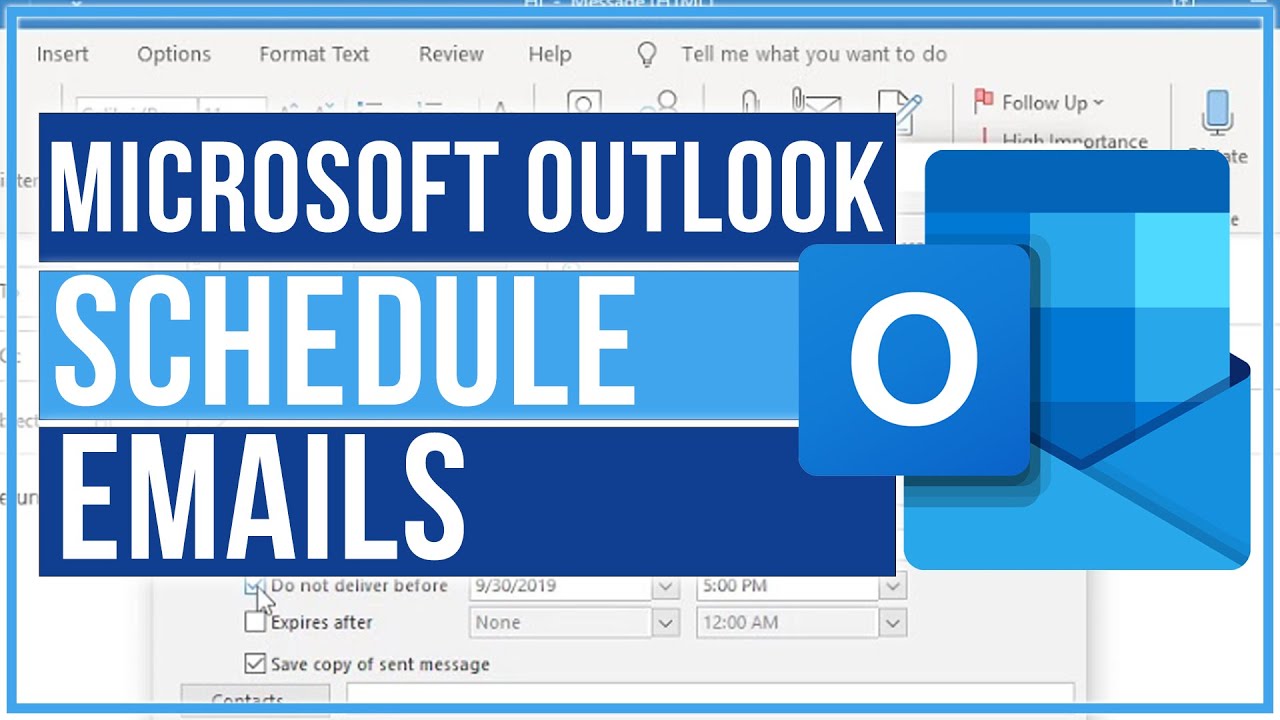
Learn how to schedule an email in Outlook so it sends automatically at a time you choose. The guide covers Schedule Send in new Outlook and Outlook on the web, Delay Delivery in classic Outlook through the Options tab, and how to edit or cancel a scheduled email. Duration: 5 min.
Video Transcript
In this tutorial we show you step by step how to schedule an email in Outlook so it sends automatically at a date and time you choose. The exact steps depend on which version of Outlook you use, so we cover both.
Lets start with the new Outlook and Outlook on the web, which is the easiest. Compose your email as usual, with the recipient, subject and message. Then, instead of clicking Send, click the small dropdown arrow next to the Send button. Choose Schedule send.
A window appears offering preset times like tomorrow morning, or you can click Custom time to pick any date and time from the calendar. Select your time and confirm. The email moves to your Drafts folder with a label showing when it will go out, and it sends automatically at that time even if your computer is off, because it is stored on the server.
Now the classic Outlook. Compose your email, then go to the Options tab at the top of the message window. Click Delay Delivery. In the properties window, under Delivery options, tick Do not deliver before and set the date and time. Close the window and click Send.
The email waits in your Outbox and sends at the scheduled time, but note the classic method needs Outlook to be open and running on your computer at that moment.
To edit or cancel a scheduled email in new Outlook, open it from the Drafts folder, make your changes and schedule it again, or just send it now. In classic Outlook, open the message in the Outbox, click Delay Delivery again and change or untick the time.
That is how you schedule an email in Outlook.
Watch the full video above to see exactly where to click, then follow the written 7 steps underneath.
What you'll see in this video
- Composing an email and finding the dropdown arrow next to Send
- Picking Schedule Send and a custom date and time
- Seeing the scheduled email in the Drafts folder
- Opening the Options tab and clicking Delay Delivery in classic Outlook
- Editing or cancelling a scheduled email
Schedule Send or Delay Delivery, Which One Do You Have?
Outlook can send an email at a future time, but the feature has two names depending on your version. In new Outlook and Outlook on the web it is called Schedule Send and lives on the dropdown arrow next to the Send button. In classic Outlook it is called Delay Delivery and lives on the Options tab of the message window. The big practical difference is where the email waits. Schedule Send queues it on Microsoft servers, so it goes out at the chosen time even if your computer is off. Delay Delivery holds it in your local Outbox, so classic Outlook must be open and running when the moment arrives. We cover both so you can use whichever version you have.
7 Steps to Schedule an Email in Outlook
Follow along with the video above as you work through these steps. As shown in the clip, watch the difference between the new Outlook Schedule Send menu and the classic Outlook Delay Delivery dialog.
- Write your email as usual, including the recipient, subject line and message body, but do not click Send yet.
- In new Outlook or Outlook on the web, click the small dropdown arrow next to the Send button instead of clicking Send. Watch where the small dropdown arrow sits next to the Send button in the video above, it is easy to miss.
- Click Schedule send. Pick a preset time like tomorrow morning, or click Custom time to choose any date and time, then confirm.
- The email moves to your Drafts folder with a label showing the send time. It sends automatically even if your computer is off, because it is stored on the server.
- In classic Outlook, after composing, go to the Options tab at the top of the message window and click Delay Delivery. As shown in the video, classic Outlook uses a different path through the Options tab, not the Send dropdown.
- In the properties window, under Delivery options, tick Do not deliver before and set the date and time. Close the window, then click Send.
- To edit or cancel, open the email from Drafts in new Outlook and reschedule, or open it in the Outbox in classic Outlook and change or untick Delay Delivery.
Things to Keep in Mind
- Schedule Send works even when your computer is off, because new Outlook stores the email on the server. Delay Delivery in classic Outlook needs Outlook open and running at the scheduled time, or the email will not go out.
- Scheduled emails wait in different places. In new Outlook they sit in Drafts with a send-time label. In classic Outlook they wait in the Outbox. Look in the right place to find and manage them.
- POP and IMAP accounts may not support server-side scheduling. If Schedule Send is missing, this is a common cause, along with being on classic Outlook where you use Delay Delivery instead.
- Mind the recipient time zone. The time you pick is your local time, so for an email meant to land at 9 AM in another region, convert the time before scheduling.
- Outlook cannot natively schedule calendar invites or meeting requests. Those send immediately when you hit Send, even if the email scheduling feature is available.
Tips for Better Timing
- Schedule important emails to land at the top of the inbox, such as 8 to 9 AM on a weekday, so they get seen rather than buried overnight.
- Write replies whenever you have time but schedule them for working hours, so you stay productive without emailing colleagues late at night.
- Double-check the date and time before confirming. It is easy to pick the wrong day, especially when using preset options like tomorrow morning.
- If you are on new Outlook, prefer Schedule Send over keeping classic Outlook open all night, since the server delivers it for you reliably.
Frequently Asked Questions
What is the difference between Schedule Send and Delay Delivery?
They do the same job in different Outlook versions. Schedule Send is in new Outlook and Outlook on the web, found on the dropdown arrow next to the Send button. Delay Delivery is in classic Outlook, found on the Options tab of the message window. Schedule Send queues the mail on the server, while Delay Delivery holds it in your local Outbox.
Will my scheduled email send if my computer is off?
It depends on the version. In new Outlook and Outlook on the web, the scheduled email is stored on the server, so it sends at the chosen time even if your computer is off or asleep. In classic Outlook, the email waits in your Outbox and only sends if Outlook is open and running at the scheduled time.
Where do scheduled emails go while they wait?
In new Outlook and Outlook on the web, scheduled emails sit in the Drafts folder with a label showing the delivery time. In classic Outlook, they wait in the Outbox until the scheduled moment. You can open them from there to edit, reschedule or send immediately.
How do I edit or cancel a scheduled email?
In new Outlook, open the email from the Drafts folder, make your changes, then use Schedule send again to set a new time, or send it now. In classic Outlook, open the message in the Outbox, click Delay Delivery on the Options tab and change the time, or untick Do not deliver before and send.
Why is the Schedule Send button missing?
A few things can hide it. If you use a POP or IMAP account, server-side scheduling may not be supported. If you are on classic Outlook, there is no Schedule Send button, you use Delay Delivery on the Options tab instead. Microsoft also moves these controls during interface updates, so make sure Outlook is up to date.