If you have come to Gmail from Outlook or Apple Mail, you have probably gone looking for folders and found something called labels instead. They are not folders with a different name. They work in a genuinely different way. Once that clicks, a lot of Gmail's quirks stop being confusing.
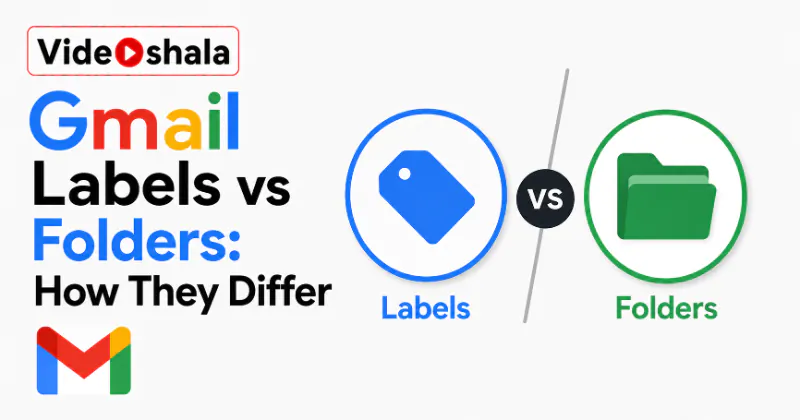
The short version is that Gmail has no folders at all. Every email really lives in one place, All Mail. A label is just a tag you stick on it. Because it is a tag and not a box, one email can carry several labels at once, which is something a folder can never do. This guide explains that difference, the Label as versus Move to trap that trips up newcomers, plus how to set labels up so they work for you.
A label is a tag, not a box
A folder is a container. Put an email in it and the email sits inside that one folder, in that one place. Move it elsewhere and it leaves the first folder behind. An email can only ever be in a single folder at a time.
A label does not move anything. It tags a message that still sits in All Mail and makes that message show up whenever you click the label in the sidebar. Since a tag is just a sticker, you can put as many on one email as you like. A single invoice can wear Client A, Invoices, Paid and 2026 at the same time. It will appear under every one of those labels without a single copy being made. That is the real power, something folders simply cannot do. Google spells out the basics in its help on creating and managing labels.
Label as versus Move to
Gmail gives you two ways to file a message. The difference between them is the single biggest source of confusion for new users.
Label as adds a label but leaves the email exactly where it is. The message keeps its Inbox label, so it still shows in your inbox, now also appearing under the new label. Nothing is hidden. Use this when you want to tag something without removing it from view.
Move to behaves like a folder move. It adds the label and strips the Inbox label off, so the message leaves your inbox and lives only under the label you chose. This is how you make Gmail feel like a tidy folder system, one home per email. If you came from Outlook and miss dragging mail into folders, Move to is the button you want. The folder shaped icon in the toolbar is Move to, not a folder.
Why deleting from one label deletes everywhere
Here is a trap that catches people who treat labels like folders. Because there is only ever one copy of an email, deleting it from under one label deletes it from all of them, plus your inbox. The email is not in three places. It is in one place wearing three stickers, so binning it removes the whole thing.
If what you actually wanted was to take a message out of one category, do not delete it. Remove that label instead. Open the email, then click the label name to peel it off. The message stays put everywhere else. Deleting is for getting rid of the email entirely, not for tidying it out of a single label.
How to create and apply a label
Making a label takes a few seconds on the web.
- In the left sidebar, scroll down and click More, then Create new label.
- Give it a name. To tuck it under an existing label, tick Nest label under and pick the parent.
- Click Create. The label now shows in your sidebar.
To put that label on a message, tick the email, click the Labels button at the top, then choose the label. You can also drag a message from the inbox straight onto a label in the sidebar. To colour a label so it stands out, hover its name in the sidebar, click the three dot menu, then pick Label color. Gmail lets you keep up to 5,000 labels, so there is no real ceiling on how finely you sort.
Nested labels: a folder tree if you want one
If a flat list of labels feels too loose, you can build a hierarchy with nested labels, which are simply labels tucked under a parent. A Clients label can hold sub labels for each client, so Clients then expands to show Acme, Globex and the rest beneath it.
This is how people who genuinely miss folders rebuild that structure inside Gmail. Pair nested labels with Move to and you get something very close to the old folder tree, each email filed in one branch. The difference is that you can still break the rules when you need to, adding a second label to an email that belongs in two places at once.
Make labels automatic
The real time saver is to stop labelling by hand. A filter can tag incoming mail for you, so receipts, newsletters or messages from one sender get their label the moment they arrive. You build it the same way you would any rule, using the filter system in our guide on auto-deleting old emails in Gmail, except the action you pick is Apply the label. Google walks through filter actions in its filter help.
Labels also explain a feature you already use. Archiving is nothing more than a label move: it peels off the Inbox label and leaves the email in All Mail with its other labels intact, which is exactly why an archived message is never deleted. Our guide on archive versus delete in Gmail goes deeper on that.
Labels are not the same as tabs
One last thing worth untangling. The Primary, Social, Promotions and Updates tabs across the top of some inboxes are categories, not labels. Gmail sorts mail into them automatically. You cannot rename them or add your own. Labels are the opposite. You create and apply them yourself, so they sit entirely under your control. Categories tidy your inbox for you, while labels let you tidy it your way.