You hit the Archive button by accident or your IT admin set up auto-archiving and now half your inbox is gone. The mail is not lost. It is sitting in one of three places and the trick is knowing which one and how to open it.
Outlook has three different "archives" and most users do not realise this. The Archive folder, Online Archive and AutoArchive each store mail differently and each is accessed in its own way. This guide covers all three across the three Outlook UIs people actually use in 2026: classic Outlook for Windows, new Outlook for Windows and Outlook on the web.
Identify which archive you are looking for
| Archive type | Where it lives |
|---|---|
| Archive folder | A regular folder inside your main mailbox. Created by the Archive button on the ribbon. Syncs to phone and web. |
| Online Archive | A separate mailbox attached to your account with its own quota. Only on certain Microsoft 365 plans. Appears as a second account in the folder pane. |
| AutoArchive PST | A local file on your computer at C:\Users\YourName\Documents\Outlook Files\archive.pst. Windows-only. Does not sync anywhere. |
If you do not know which one you are looking for, work through this guide top to bottom. Most users find their missing mail in the first section.
Open the Archive folder
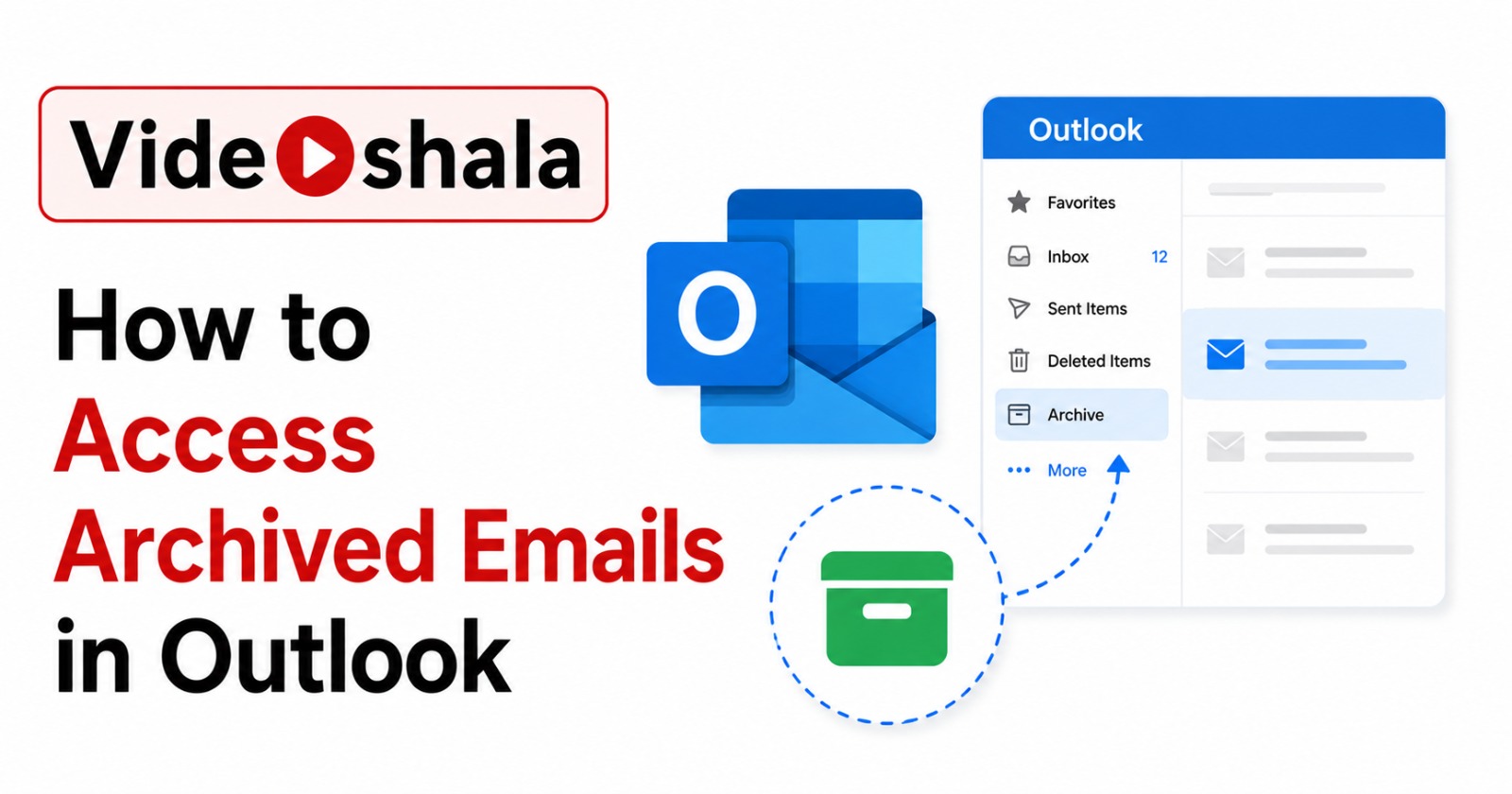
This is the simplest case. The Archive folder is a standard mailbox folder just like Inbox or Sent Items.
Classic Outlook for Windows
- Look at the folder pane on the left.
- Expand your email account if it is collapsed (click the small arrow next to your email address).
- Scroll down to find the Archive folder.
- Click it to view the contents.
- To move a message back to the inbox, right-click it, pick Move, then Inbox.
New Outlook for Windows
- Click Folders in the navigation pane on the left.
- Find Archive in the list. If it is hidden, right-click Folders and choose Show all folders.
- Click Archive to open it.
Outlook on the web
- Sign in at outlook.office.com for work or school or outlook.live.com for personal.
- The folder list is on the left. Archive appears between Inbox and Sent Items.
- Click More if you do not see Archive immediately. The folder list expands.
Open the Online Archive (Microsoft 365 enterprise)
Online Archive is a feature for Microsoft 365 enterprise customers with large mailboxes. It is a completely separate mailbox attached to your account, with its own folder structure and its own quota (usually 100 GB). Your admin enables it on your account. You cannot turn it on yourself.
Classic Outlook for Windows
If Online Archive is enabled on your account, it appears in the folder pane below your main mailbox, usually labelled Online Archive minus your-name@company.com. Click the arrow to expand it. The folder structure inside (Inbox, Sent Items, Deleted Items) is independent of your main mailbox.
Outlook on the web
Scroll the folder list on the left. Online Archive appears as a separate section below your regular folders. If you do not see it, your account does not include Online Archive. Microsoft's official Archive in Outlook guide lists which plans include it.
Mobile (Outlook iOS and Android)
Tap the account icon at the top left, then expand your account to see the folder list. Online Archive appears as a separate section. Search within Online Archive works the same as the main mailbox.
Open an AutoArchive PST file
AutoArchive is a legacy Windows-only feature that runs every 14 days by default and moves old mail into a local PST file. It only works in classic Outlook. The new Outlook for Windows does not support AutoArchive.
Find the file first
The default location on Windows 10 and 11:
C:\Users\YourName\Documents\Outlook Files\archive.pst
Replace YourName with your Windows username. If you customised the AutoArchive path, check File > Options > Advanced > AutoArchive Settings for the actual location.
Open the PST in Outlook
- In classic Outlook, go to File > Open & Export > Open Outlook Data File.
- Browse to the archive.pst file.
- Click Open. The archive appears in your folder pane as a separate folder tree, usually called Archives.
- Expand it to see the same folder structure as your main mailbox.
- Move messages back to your inbox by dragging or right-click Move.
Switched computers and the PST is gone?
Check the old computer or your backup. AutoArchive PST files do not move automatically when you set up Outlook on a new machine. If you only have the old machine's user folder backed up, copy archive.pst to the new machine and follow the open steps above.
Search across all archives at once
If you know roughly what you are searching for, the search bar is faster than clicking through folders. By default, Outlook search covers all folders in your current mailbox including Archive. To also include Online Archive, change the search scope.
The All Mailboxes trick
- Click the search bar at the top of Outlook.
- Look for the scope dropdown next to the search box. It usually says Current Mailbox.
- Change it to All Mailboxes.
- Type your search term and press Enter.
- Results include the main mailbox, the Archive folder and the Online Archive in one combined list.
AutoArchive PST files are not searched by default, but once you open one via Open Outlook Data File it gets included in the All Mailboxes scope automatically.
Common problems and quick fixes
| Problem | Fix |
|---|---|
| Archive folder exists but I cannot see it | Click Show Navigation Pane. Expand your account folder tree. The Archive folder is alphabetical so it sits near the bottom in many configs. |
| Online Archive missing from folder list | Your account does not include it. Check with your IT admin. Personal Microsoft 365 plans do not have Online Archive at all. |
| AutoArchive PST file is empty | AutoArchive may have been disabled or never ran. Check File > Options > Advanced > AutoArchive Settings. The same PST may also be opened in another Outlook profile. |
| Mobile shows different archived emails than desktop | Mobile only syncs the server-side Archive and Online Archive folders. AutoArchive PST is local-only so it never appears on phones. |
| Mail is in Archive but I never archived it | Your admin set up a retention policy that auto-archives mail older than X days. The mail is in Online Archive, not the regular Archive folder. Look in the Online Archive section. |
When you accidentally archive an email
Most users hit Archive by mistake at least once. The Backspace key is mapped to Archive in classic Outlook by default, which is why this happens so often.
- Immediately after the action, press Ctrl+Z. The Undo command reverses the last archive operation if you catch it quickly.
- If Ctrl+Z does not work, open the Archive folder, find the message, right-click and pick Move > Inbox.
- To prevent future accidents, disable the Backspace shortcut. Go to File > Options > Mail > Reading pane and adjust the keyboard mapping. Or just train yourself to use Delete instead.
If your mail does not show up in Archive after an accidental press, check the Deleted Items folder next. Sometimes the keypress is interpreted as Delete depending on which pane has focus. Our guide on retrieving old emails in Outlook 365 covers the Deleted Items and Recoverable Items recovery path in detail.
Which archive should you actually use?
If you have a choice (admins, this one is for you), here is the honest ranking. Online Archive is the best option because it lives on the server, syncs to all devices, has a large quota and survives computer changes. The regular Archive folder is fine for personal accounts where Online Archive is not available. AutoArchive is the worst of the three because the PST file lives on a single computer and gets orphaned every time the user gets a new machine.
If you are stuck using AutoArchive, set a calendar reminder to back up the archive.pst file to a network share or cloud storage every quarter. That one habit prevents 90% of the "Outlook ate my emails" panic tickets we see.