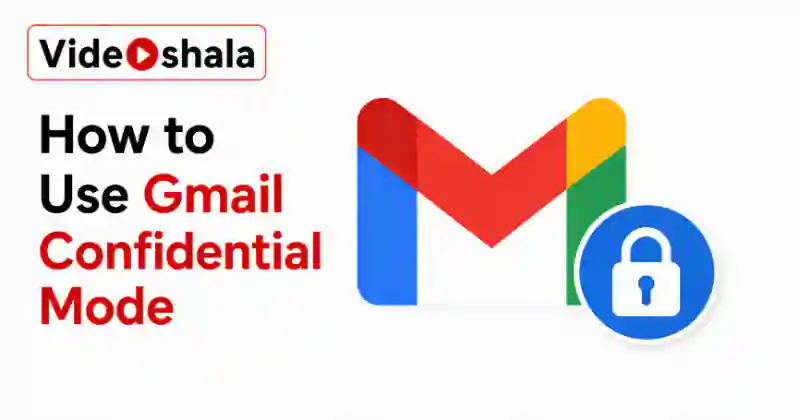
Gmail confidential mode is the nearest thing Gmail has to keeping a grip on a message after you send it. You can set the email to expire, lock it behind a passcode and pull back access whenever you like. It is genuinely useful, but it is worth saying plainly at the top: this is control, not security. It does not encrypt anything.
With confidential mode on, the recipient cannot forward, copy, print or download your message or its attachments. The buttons are simply disabled. You can also set the email to expire after anything from one day up to five years. On top of that, you can revoke access at any time. What it cannot do is stop someone photographing their screen, so treat it as a way to curb casual sharing rather than a vault. Here is how to use it well, plus where it falls short.
Turn on confidential mode and send
The toggle sits right inside the compose window, so you switch it on per message rather than as a global setting.
On a computer:
- Click Compose, then write your email and add the recipient.
- At the bottom right of the compose window, click the padlock and clock icon to toggle confidential mode on.
- Pick an expiry, from one day up to five years.
- Choose a passcode option, then click Save.
- Send the email as normal.
On the Gmail app for Android or iPhone, tap Compose, tap the three dot More menu at the top right, then choose Confidential mode and set the same options. Unlike some Gmail features, this one works on both web and mobile. Google lays out every step in its help on confidential emails.
Expiry and passcode explained
Two settings do the work. The expiry decides how long the recipient can open the message, with choices of one day, one week, one month, three months or five years. When it lapses, their access ends on its own.
The passcode controls who gets in. Pick Standard and a recipient using Gmail opens the message straight away, while a non-Gmail recipient is emailed a passcode. Pick SMS passcode and the recipient instead gets a code by text, which means you must enter their phone number, not your own. The SMS option adds a real identity check, so use it when the address alone is not proof enough that the right person is reading.
Revoke access after sending
This is the feature people value most. Even after a confidential email has gone, you can cut off access before its expiry date.
- Open Gmail, then go to your Sent folder.
- Open the confidential email you sent.
- Click Remove access.
From that moment the recipient can no longer open the message or its attachments. The same Remove access option appears in the Sent folder of the mobile app. One limit to note: you can only ever shorten access, never extend it. If someone needs the message again after you revoke or after it expires, you have to send it afresh.
Confidential mode revokes access to a message that has already arrived. If instead you want to stop a message in the few seconds right after you hit send, that is a different tool, covered in our guide on recalling an email in Gmail.
What the recipient sees
A Gmail user reads the message inside their inbox like any other email, with the share controls greyed out. They may need to type a passcode if you chose the SMS option. Someone on another provider, such as Outlook or Yahoo, does not get the text directly. They receive a short email with a link that opens the message on a secure Google page. They may then be asked to sign in or enter a passcode.
That extra step can look like a phishing attempt to a cautious recipient, so it helps to warn them in advance that a confidential message is coming. A plain heads up by phone or chat saves confusion.
When to reach for it
Confidential mode fits a specific kind of message: something you want a named person to read once, without it being forwarded around or sitting in their inbox forever. A few honest examples make the line clearer.
Good fits include a draft contract or quote sent to a single client, a document with personal details shared for a short window and a one off reference that should not be circulated. Set a short expiry and, for anything with personal data, add an SMS passcode so only the intended phone owner can open it. Poor fits are the opposite: real credentials, anything that would cause harm if photographed and messages you need to prove were delivered and signed. For those, reach for a password manager, a signed agreement platform or a properly encrypted service. Matching the tool to the risk is the whole skill here.
The limits you should know
Confidential mode is a useful layer, not a safe. Knowing the gaps stops you trusting it with the wrong things.
- It does not encrypt. The message sits on Google's servers in a readable form, so it is not end to end encrypted. Google can technically access the content.
- Screenshots still work. Google itself notes that the feature does not stop a recipient taking a screenshot or photographing the screen. A determined reader can keep a copy.
- It does not self-destruct. Expiry removes the recipient's access, but the email stays in your Sent folder. Nothing is actually deleted.
- The subject line is exposed. Only the body and attachments are protected. The subject still shows in previews, notifications and records, so keep it vague.
- It is not compliance. On its own it does not meet standards like HIPAA, so it is not a substitute for proper secure systems.
For truly sensitive material like passwords or API keys, the better habit is not to email them at all. Use a password manager or a dedicated vault instead. On a Google Workspace domain, an administrator and Vault can also retain copies of confidential messages, which is set out in Google's admin guidance.
One last point: confidential mode guards a single message, not your whole account. The account itself is protected by your password and by two-step verification in Gmail, which is the layer that actually keeps strangers out of your mail.