People use the words archive and backup as if they mean the same thing. They do not. One tidies your mailbox. The other protects your mail. Mixing them up is how someone ends up thinking their email is safe when it is only neatly filed inside an account that could still vanish overnight.
The difference is easy once you see it. Most articles on this topic bury it under talk of compliance and legal hold meant for IT departments. Here is the plain version for a normal person looking at the Archive button in their own Gmail or Outlook.
In one breath, here is how the two compare.
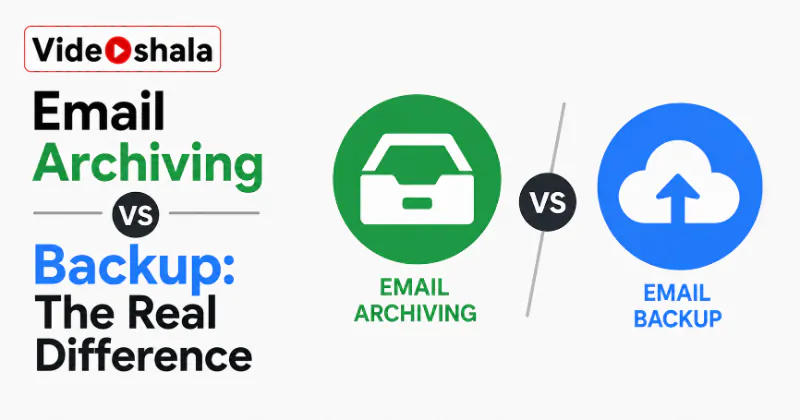
- Archiving keeps mail inside your email account. A backup keeps a copy outside it.
- Archiving is for tidying and finding old mail. A backup is for recovery after loss.
- From an archive you retrieve one message. From a backup you restore lost data.
- Lose your account and archived mail goes too. A backup survives because it lives elsewhere.
- Most people want a clean archive for daily use plus one real backup for safety.
What to focus on
Most people arrive here with one specific doubt. Here is the short answer to each, so you can jump to yours.
- Is the Archive button a backup? No. It only hides mail inside the same account.
- Where does archived mail actually go? Into another folder of the same account, such as All Mail in Gmail or the Archive folder in Outlook, not onto your own device.
- Does archiving free up storage? In a personal Gmail account, no. Archived mail still counts toward your 15 GB.
- What if I lose the account? Archived mail disappears with it. Only a backup kept elsewhere survives.
- Do I need both? Usually yes. Archiving for a tidy mailbox, a backup for real protection.
What email archiving actually means
Archiving moves a message out of your inbox while it stays inside the same email account. In Gmail the Archive button sends a message to All Mail. In Outlook it drops into an Archive folder. The message is not deleted and it does not land on your computer. It is simply out of the inbox and out of the way.
Archiving moves a message out of sight but keeps it inside the very same account. The point is a calm, uncluttered inbox you can still search at any time. If you ever need that message back, you open the archive location and pull it up, which is exactly what our guides on finding archived emails in Gmail and archiving emails in Outlook walk through.
What an email backup actually means
A backup is a separate copy of your mail stored somewhere outside the account, most often as a file on your own drive. It exists for one reason: if the original is lost, deleted, corrupted or the whole account vanishes, you still hold your own copy.
A backup lives outside your account, which is the whole reason it can save you. Because it sits on your disk or an external drive, it is not affected by anything that happens to the online mailbox. Our explainer on how an email backup tool works goes into the mechanics, but the principle is just this: a copy you keep, in a place your provider does not control.
The difference in one line
Strip away the jargon and it comes down to two verbs. You retrieve a single message from an archive; you restore lost mail from a backup. An archive answers the question "where did that email go?" A backup answers a very different question: "my mail is gone, how do I get it back?"
That is also why one cannot replace the other. An archive assumes the account is fine and you just need to dig something out. A backup assumes the worst has already happened. They are built for opposite moments.
Why people mix the two up
The confusion almost always starts with one button. The word "archive" sounds like safekeeping, like putting something in a vault. So people press Archive, feel protected and move on. But the button only relocates mail within the same account. Nothing leaves.
The Archive button is not a backup, because the mail never leaves your account. If that account is suspended, hacked or closed, every archived message goes down with it, just as surely as the inbox does. Archiving is about where mail sits day to day. It says nothing about surviving a disaster, which is the gap our guide on archive versus delete in Gmail also touches on.
Does archiving free up storage?
This is the other belief worth correcting, because it depends entirely on context. In a personal Gmail account, archiving frees nothing. The mail still sits in All Mail and still counts toward the 15 GB shared across Gmail, Drive and Photos. Moving a message to a different folder does not make it weigh less.
In a personal Gmail account, archiving does not free up any storage at all. Business archiving systems are different. They lift mail off the live server onto separate storage, which genuinely reclaims space. That is why so many articles claim archiving saves space. For an everyday account the only ways to actually reclaim room are to delete mail and empty Trash or to move it out with a copy, as our guide on auto-deleting old emails in Gmail explains.
Do you need archiving, a backup or both?
For most people the honest answer is both, because they do different jobs. Archive freely during the day to keep your inbox clean and everything still findable. Separately, keep one real backup outside the account for the day something goes wrong, whether that is a forgotten password, a hacked login or an account you have to close.
Archiving keeps your mailbox usable; a backup keeps your mail recoverable. If you genuinely only have time for one, make it the backup. A tidy inbox is a convenience. A copy that survives losing the account is the thing that actually protects you.
How to keep a real backup without a tool
You do not need to buy anything to start. Your provider already gives you a way to pull a copy out. Google offers Takeout, which exports your whole Gmail in one download. Adding the account to a desktop program like Outlook or Thunderbird over IMAP pulls a synced copy onto your machine that you can then keep.
A copy only counts as a backup once it lives somewhere your account cannot take down with it. So whichever route you use, finish the job by saving that copy to your own drive or an external disk. Leaving it inside the same account is just archiving by another name. For the full picture of full versus incremental copies and the file formats involved, see how an email backup tool works.