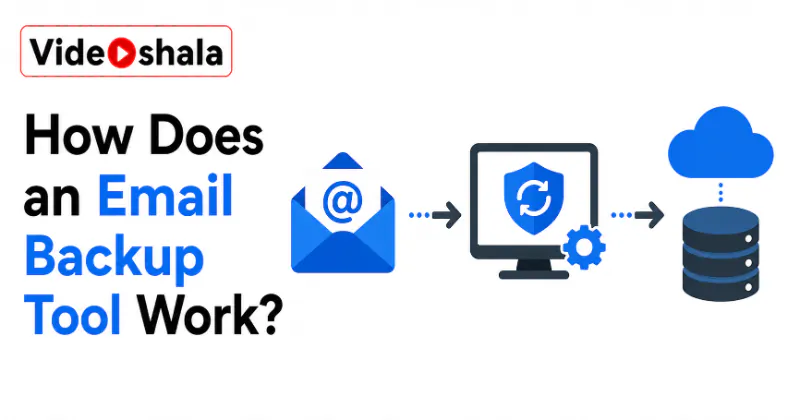
An email backup tool sounds technical, but the core idea is simple. It is an automated copier. It logs into your mailbox, reads every message, then writes a copy of each one into a file stored on your own computer. That file is yours. It sits on your drive whether or not your email account still exists.
Most guides on the subject are written by the companies selling the tools, so they tend to skip the how and jump to the buy. This one does the opposite. Here is what actually happens inside an email backup tool, step by step, plus the parts worth understanding before you decide whether you even need one.
In short, here is the whole process.
- It connects to your mailbox over IMAP, in read only mode so nothing is changed.
- It copies every message in full, keeping folders, attachments and read status.
- The first run is a full backup. Later runs are incremental and add only new or changed mail.
- It saves everything into a file format you pick, such as PST, MBOX, EML or PDF.
- It stores the file where you choose and can repeat on a schedule.
What to focus on
Most people land here with one specific worry. Here is the short answer to each, so you can jump to what matters.
- Will it touch my real mailbox? No. A good tool connects in read only mode and only copies, so nothing is changed, moved or deleted.
- Will every backup be slow? Only the first one. After that, incremental runs copy just the new or changed mail.
- Which format should I pick? PST and MBOX reopen in a mail app. EML and PDF are for single messages and reading.
- Is the copy actually safe? Keep it somewhere separate from your computer, then schedule it so it stays current.
- Is a backup the same as archiving? No. Archiving moves mail inside your account. A backup puts a copy outside it.
- Do I even need a tool? For a single copy your provider's own export may be enough. A tool mainly adds scheduling and scale.
Step one: it connects to your mailbox
The tool needs a way in. For almost every provider that means IMAP, the standard protocol that lets an outside app read a mailbox over the internet. Modern tools sign in with OAuth, the same secure Google or Microsoft login window you see elsewhere, so your actual password never has to be typed into the tool. Older ones use an app password instead.
The important detail is that a well built backup tool connects in read only mode. It opens your mailbox to look, not to touch. It does not mark messages as read, move them or delete anything. An open source script like this widely used IMAP backup tool makes the point plainly: it performs read operations only. That is what keeps the process safe to run against a live account.
Step two: it copies every message
Once connected, the tool walks through your folders and downloads each message in full. Not just the text, but the whole thing: sender, recipients, subject, date, the body, every attachment and the hidden headers that prove when and how the mail was sent.
A good tool preserves your structure as it goes. Folders and labels are kept, read and unread status is carried over, attachments stay attached rather than being stripped out. The aim is a faithful copy, so that what lands on your disk looks and behaves like the mailbox it came from, not a flattened text dump.
Full versus incremental: the part that matters
The first time you run a backup, the tool copies everything. That is a full backup. On a large mailbox it can take a while and a fair amount of disk space.
Every run after that is where the clever bit comes in. Instead of copying the whole mailbox again, a good tool does an incremental backup: it compares what is already saved against what is on the server and downloads only the new or changed messages. It recognises what it already has by each message's unique identifier, so nothing gets copied twice. This makes later backups fast, light on storage and safe to interrupt. If the process stops halfway, it simply picks up the messages it missed. A tool without this feature forces a slow full copy every single time, which is the difference between a backup you actually keep running and one you quietly abandon.
The file formats it saves to
The copy has to live in some kind of file. The format you pick decides what you can do with it later. A few show up again and again.
- PST is Outlook's own format. Choose it if you want to open the backup inside Outlook and browse it like a normal mailbox.
- MBOX is the open standard used by Thunderbird, Apple Mail and many others. It is the most portable choice and is not tied to any one company.
- EML saves each message as its own separate file, which is handy when you only care about individual emails rather than a whole mailbox.
- PDF turns each message into a fixed, human readable page. It is the format for reading and printing, not for loading back into an email app.
The rule of thumb: PST and MBOX are containers you reopen in a mail program, while EML and PDF are about getting at individual messages. Pick the one that matches what you plan to do with the backup, because converting between them later is extra work.
Where the copy goes and when
You choose the destination. Most tools let you save to your internal drive, an external hard disk, a network drive on the home or office network, even a folder that syncs to cloud storage. The safest setups keep a copy somewhere separate from the computer itself, so a dead laptop does not take the backup with it.
Timing is the other choice. You can run a backup once by hand. Or set it to repeat on a schedule, daily or weekly, so fresh mail is captured without you remembering to do it. A one off copy is fine as a snapshot before you delete an account. A schedule is what turns a backup into ongoing protection.
What a backup tool cannot do
It helps to be clear about the edges. A backup is a copy frozen at the moment it ran. It does not stay in sync with your live mailbox by itself, so anything that arrives after the last run is not in it until the next one. That is exactly why scheduling matters.
A backup also is not a recovery button for your online account. If you delete a message in Gmail and want it back, the fast route is the Trash, not your backup file, as our guide on recovering deleted emails in Gmail shows. The backup earns its keep later, when the message is gone for good or the whole account is. And a backup is not the same as archiving. Archiving only shuffles mail around inside your account, while a backup puts a copy outside it, a distinction our guide on archive versus delete in Gmail gets into.
Do you even need a tool?
Not always. A good explainer should say so. Your provider gives you native ways to grab a copy already. Google has Takeout, which exports your whole mailbox in one go.
Desktop clients can do it too. Adding your account to Outlook or Thunderbird over IMAP pulls a synced copy onto your machine. Outlook can then export that to a PST file, while Thunderbird stores mail in MBOX. These native routes are free and fine for a one time copy. Where they fall short is repetition and scale. Takeout is a manual, one off export with no scheduling. Exporting many mailboxes by hand does not scale either. That gap, recurring and bulk backups across several accounts, is the real reason a dedicated tool exists. If your need is a single snapshot, the built in options may be all you require.