Sharing one contact from your iPhone takes three taps. Sharing fifty contacts takes a workaround, because Apple still does not have a clean bulk-share button after years of asking. And sharing to an Android user is its own thing because AirDrop and NameDrop are Apple-only.
This guide covers all of it. The fast one-tap method, the two-finger swipe trick most users have never seen, NameDrop for the iOS 17.1 crowd, the iCloud.com workaround when you really need to ship hundreds of contacts at once and the cross-platform path when the recipient is on Android.
The five ways to share a contact
| Method | Best for |
|---|---|
| Share Contact button | One contact, any recipient, any channel |
| NameDrop | Sharing your own card with another iPhone in person, iOS 17.1+ |
| AirDrop | Quick send to a nearby iPhone, iPad or Mac |
| Two-finger swipe + Share | Multiple contacts at once, recipient is also on iPhone or Mac |
| iCloud.com vCard export | Hundreds of contacts, cross-platform, full address book backup |
Method 1: Share one contact (the basic flow)
- Open the Contacts app. The Phone app's Contacts tab works the same way.
- Tap the contact you want to share.
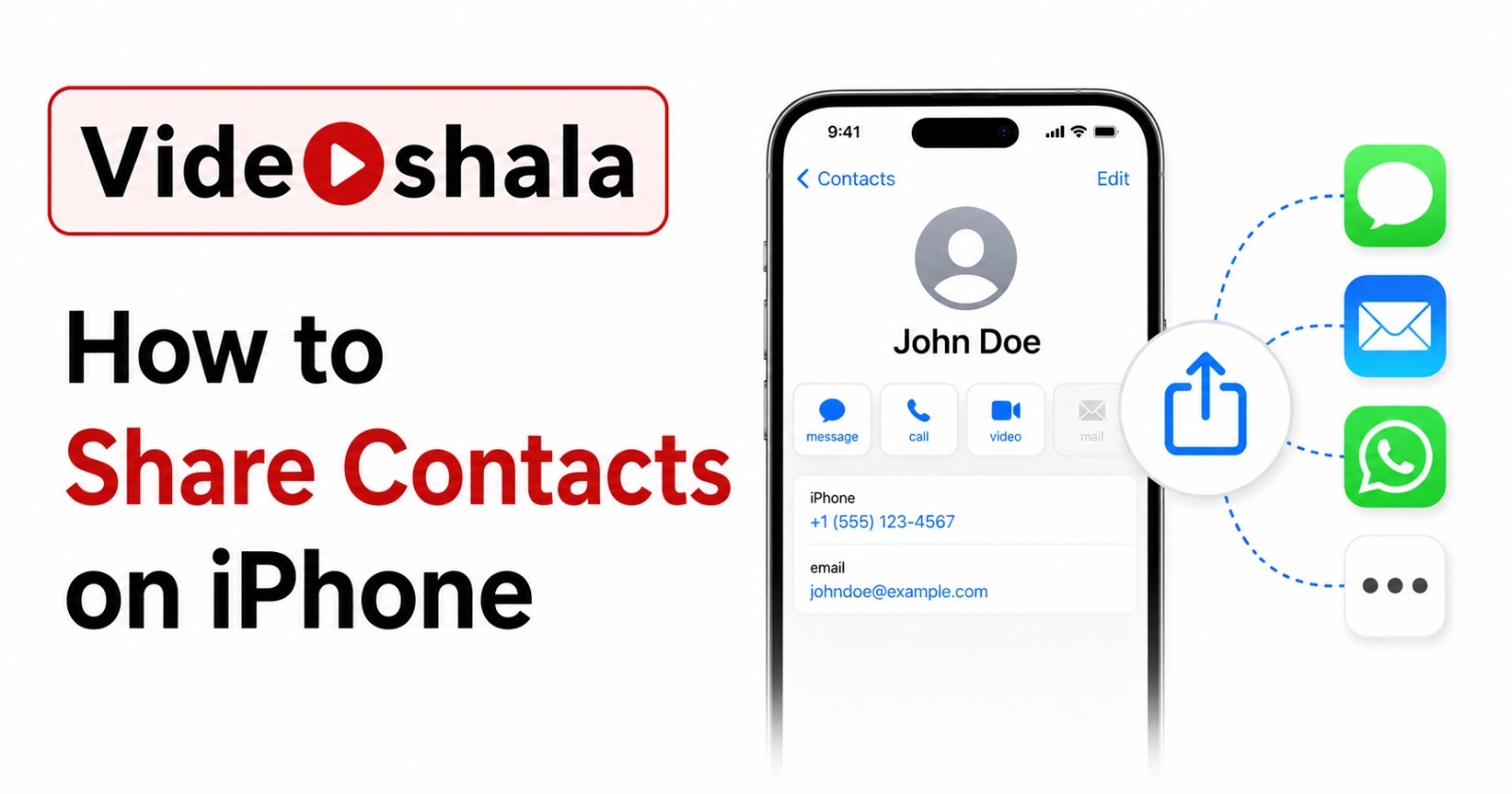
- Scroll down and tap Share Contact.
- Pick which fields to share. By default everything is included. Uncheck anything you do not want the recipient to see.
- Tap Done.
- Pick a channel: AirDrop, Messages, Mail, WhatsApp, Telegram, anything else with an iOS share extension.
The contact goes as a .vcf attachment. The recipient taps it and their phone offers to add it to their address book. This works regardless of what phone the recipient has, because .vcf is supported everywhere. If you want to know more about the format itself, our earlier guide on creating a VCF file of contacts explains the syntax and the version differences.
Method 2: NameDrop (iOS 17.1 and later)
NameDrop was Apple's answer to the "exchange contact info" problem at networking events. Hold the top of your iPhone close to the top of another iPhone, both unlocked. A glow appears, then a card slides up on both screens with each person's contact info. Each user picks Share, Receive Only or cancel.
What NameDrop can and cannot do
- Sends only your own contact card, not another contact from your address book.
- Only creates new contacts. It will not update an existing entry on the receiving phone.
- Both devices must be unlocked and running iOS 17.1 or later or watchOS 10.1 on Apple Watch.
- The poster of your contact card (the photo and font from the Memoji setup) gets sent along, so make sure yours looks decent.
Method 3: AirDrop a single contact
AirDrop is the original Apple-to-Apple share. It works for contacts the same way it works for photos.
- Make sure both devices have Bluetooth and Wi-Fi on. AirDrop should be set to Everyone for 10 Minutes or Contacts Only on both ends.
- Open the contact, tap Share Contact, then tap AirDrop.
- Pick the recipient's device from the AirDrop list.
- The recipient taps Accept. The contact is added directly.
AirDrop is reliable inside the Apple ecosystem. It does not work to Android. Apple's AirDrop support page covers the device-list requirements and what to do when the recipient does not appear.
Method 4: The two-finger swipe trick (multiple contacts)
This is the feature most iPhone users do not know about. Since iOS 16 you can multi-select contacts directly in the Contacts app with a swipe gesture.
- Open the Contacts app (not the Phone app's Contacts tab, the gesture does not always work there).
- Place two fingers on a contact in the list.
- Swipe down with both fingers. Contacts get selected as you swipe past them. Lift, scroll and swipe again to add more.
- Touch and hold any one of the selected contacts. A menu appears with Share, Delete, Copy.
- Tap Share. Pick AirDrop, Mail, Messages or any other channel.
The result is a single .vcf file containing every selected contact. The recipient gets one attachment with a tap-to-add-all option. Fast for 10 or 20 contacts. Painful past 50 because the swipe gesture gets finicky on long lists.
Method 5: iCloud.com bulk export (hundreds of contacts)
For real bulk work, the iPhone is the wrong tool. Use iCloud.com on a desktop browser. This is also the cleanest method when the recipient is on Android.
- Make sure iCloud Contacts is on. Settings > your name > iCloud > Contacts should be toggled on.
- Open icloud.com in a browser, sign in with your Apple ID.
- Open Contacts.
- Click any contact to focus, then press Cmd+A on Mac or Ctrl+A on Windows to select all. Or hold Cmd/Ctrl and click individual contacts for a custom selection.
- Click the gear icon in the lower left, pick Export vCard.
- A single .vcf file downloads, containing every selected contact.
That one file imports into Android Contacts, Outlook, Google Contacts, anything that reads vCard. It is also the recommended way to back up your iPhone contacts before switching phones.
Sending to Android users
AirDrop and NameDrop are Apple-only. The Share Contact button still works to Android because the .vcf file format is universal, you just need a delivery channel that crosses platforms.
| Channel | Cross-platform notes |
|---|---|
| Most reliable. The .vcf goes as a document attachment. Recipient taps, picks Contacts, imports. | |
| Universal. Slight delay because of SMTP. The recipient downloads the .vcf and opens in their default Contacts app. | |
| Telegram | Same as WhatsApp. Works cleanly. |
| Messages (SMS) | RCS messages handle .vcf fine on modern Android. Plain SMS does not, the file goes as an MMS and may fail on large vCards. |
| Google Drive link | Best for very large vCards. Upload, share the link, recipient downloads. |
For the cross-platform workflow, the data goes through the iPhone's import-CSV-and-export-vCard loop in some cases. Our earlier post on importing a CSV file to contacts covers that side of the trip if you are coming from a spreadsheet rather than the iPhone.
Sharing a contact group or list
iOS 17 added Contact Lists, which behave a bit like real groups for the first time. Older iPhones used iCloud groups that only worked from a desktop. Lists work directly on the phone.
Create a list and share it
- In the Contacts app, tap Lists at the top left.
- Tap Add List. Name it. Tap Create.
- Open the list, tap Add Contacts, pick the ones you want.
- Touch and hold the list name, tap Export.
- iOS bundles every contact in the list into a single .vcf and opens the share sheet.
Lists are local to your iPhone, they do not sync across devices the way iCloud groups do. If you need cross-device sync, use iCloud groups on the desktop instead and rely on the iCloud.com export workflow above.
Common problems and quick fixes
| Problem | Fix |
|---|---|
| NameDrop does nothing when phones touch | Both phones must be unlocked, both running iOS 17.1+ and Bringing Devices Together must be enabled in AirDrop settings. |
| Recipient does not appear in AirDrop list | Their AirDrop is set to Contacts Only and you are not in their contacts. Ask them to switch to Everyone for 10 Minutes. |
| Two-finger swipe selects nothing | You are in the Phone app's Contacts tab. Switch to the dedicated Contacts app. The gesture only works there. |
| Photo and notes missing from shared contact | Field selection at the Share Contact step. Tap each field name to toggle it on before tapping Done. |
| iCloud.com shows no contacts | iCloud Contacts is off on your iPhone. Settings, your name, iCloud, turn on Contacts. Wait a few minutes for sync. |
Which method to actually use
One contact, both on iPhone, in person: NameDrop. One contact, any other situation: tap Share Contact, pick a channel. Five to twenty contacts to a friend with an iPhone: two-finger swipe and AirDrop. A whole address book or anything going to Android: iCloud.com, export vCard, send the file.
iPhones make sharing one thing very smooth and bulk-sharing oddly clunky. The bulk paths exist, you just have to know they are not in the Contacts app on the phone.