Outlook signatures are 90% configuration and 10% design. The 90% is settings menus that moved between versions: classic Outlook hides them inside a New Email window, new Outlook puts them in account settings, the web version is different again. The 10% design is whatever you actually write, which is a separate post. This guide handles the configuration side across all four Outlook flavours.
The order matters: identify your version first, set up the signature, then assign it to new messages AND replies (the most common gotcha), then verify it works on a test send. If you skip the assignment step, your signature exists but never appears.
Identify which Outlook you are using
The exact steps differ across four Outlook versions. Check yours first.
| Version | How to tell |
|---|---|
| Classic Outlook for Windows | Has the classic ribbon with File, Home, Send/Receive, Folder, View tabs. The "Outlook 2019/2021/365" desktop app. Most enterprise users. |
| New Outlook for Windows | Cleaner interface launched in 2024. Has a Try the new Outlook toggle at the top right. Some users have already switched permanently. |
| Outlook on the web | Browser tab at outlook.office.com or outlook.live.com. No installed app. |
| Outlook for Mac | macOS app with macOS-style menu bar at the top of the screen. |
Outlook mobile (iOS and Android) is separate and has its own signature setting inside the app's Settings, Signature. Mobile signatures do NOT sync with desktop.
Method 1: Add a signature in classic Outlook for Windows
The classic-Outlook path is the oldest and most-documented but also the most layered.
- Open Outlook. Click New Email in the top-left ribbon to open a compose window.
- In the new message window, click the Message tab on the ribbon.
- Click Signature. In the dropdown, click Signatures... at the bottom.
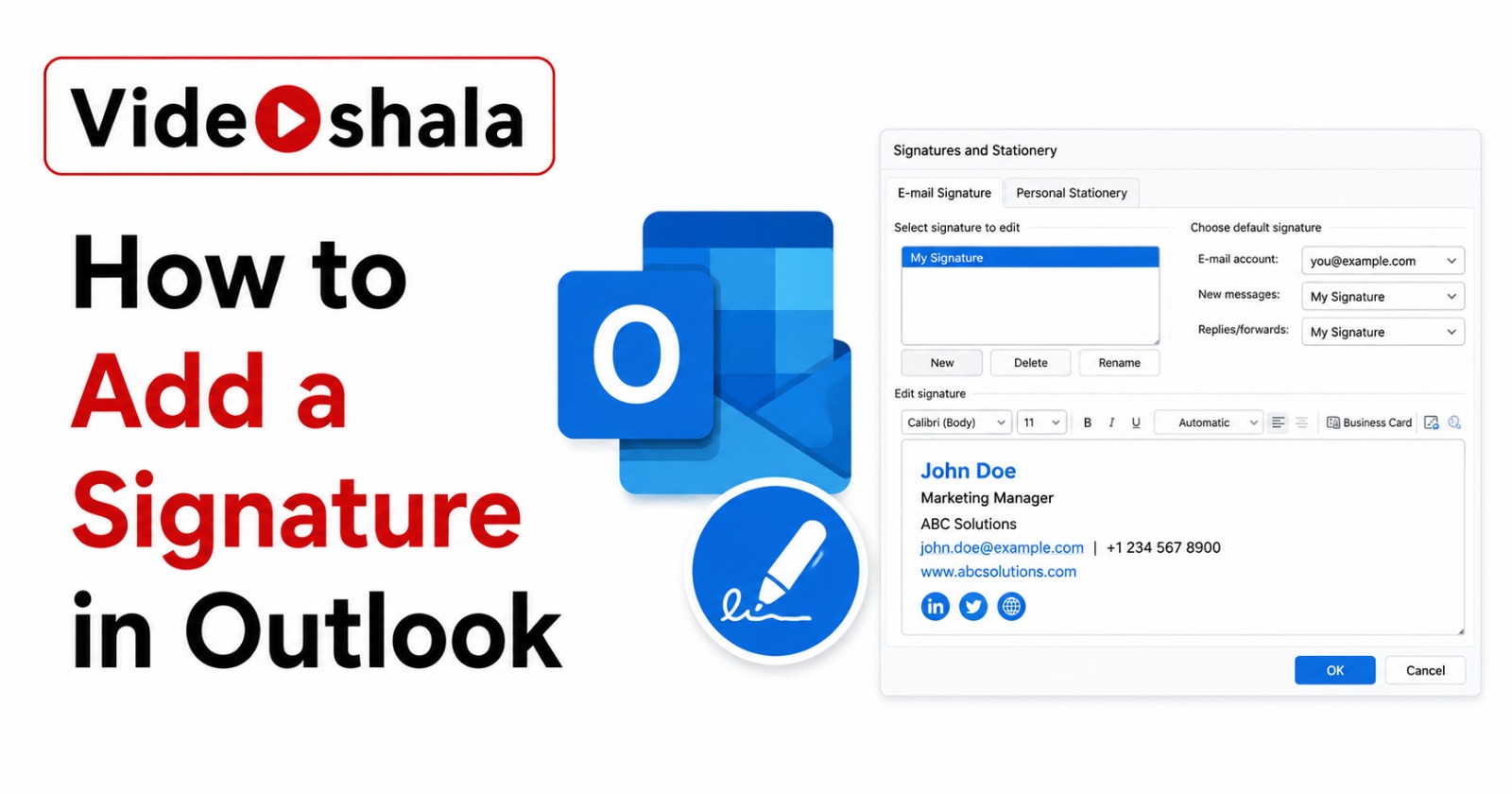
- The Signatures and Stationery dialog opens.
- Under Select signature to edit, click New.
- Type a name (e.g., "Work", "Personal", "Short reply"). Click OK.
- In the Edit signature box, type your signature content. Use the toolbar to change fonts, sizes, colours and add hyperlinks or images.
- On the right under Choose default signature:
- Pick the Email account if you have multiple accounts.
- Set New messages to your signature name.
- Set Replies/forwards to your signature name. Easy to forget. Most people skip this.
- Click OK to save.
Method 2: Add a signature in new Outlook for Windows
New Outlook puts signatures in the proper Settings menu rather than buried inside a compose window.
- Open new Outlook. Click the gear icon in the top right to open Settings.
- In the Settings panel, click Accounts > Signatures.
- If you have multiple accounts, pick the right one from the dropdown at the top right.
- Click + New signature.
- Give the signature a distinct name in the top field.
- Type your signature content in the editor below. Use the formatting toolbar for fonts, colours, hyperlinks and inline images.
- Click Save.
- Under Select default signatures below the editor:
- Set For new messages to your signature.
- Set For replies/forwards to your signature. Two separate dropdowns, both need to be set.
- Click Save again to apply the defaults.
New Outlook stores signatures in the cloud, so they sync automatically across all devices where you sign in with the same Microsoft 365 account.
Method 3: Add a signature in Outlook on the web
Same engine as new Outlook for Windows, accessed via a browser.
- Open outlook.office.com (work or school account) or outlook.live.com (personal account).
- Click the gear icon in the top right, then View all Outlook settings at the bottom of the panel.
- Go to Mail > Compose and reply (or Accounts > Signatures in newer UIs).
- Click + New signature.
- Name the signature, fill the editor, click Save.
- Set the default signature for new messages and for replies/forwards.
- Click Save.
The web signature shares storage with new Outlook for Windows. Changes in one show up in the other.
Method 4: Add a signature in Outlook for Mac
- Open Outlook on macOS.
- Click Outlook in the menu bar, then Preferences (or Settings in newer versions).
- Click Signatures.
- Click the + button to add a signature. Name it, type the content, format as needed.
- Click the lock or close button to save.
- Back in the Signatures preference window, under Choose default signature, pick the account from the dropdown and assign signatures for new messages and replies/forwards.
Add an image or logo to a signature
Visual signatures look professional but break easily. Three rules:
- Keep image dimensions under 600px wide and under 200KB file size. Larger images get blocked, scaled badly or flagged as spam.
- Use JPG or PNG. SVG and WebP do not render reliably across email clients.
- For company logos, request the version your design team uses for email specifically. Web logos are often too large.
Classic Outlook
- Open the Signatures dialog as in Method 1.
- Pick the signature to edit.
- In the editor, click the image icon (mountain icon).
- Browse to your image file and click Insert.
- Right-click the image to resize, add a hyperlink or set alt text.
- Click OK to save.
New Outlook and Outlook on the web
- Open Signatures settings.
- Pick the signature to edit.
- Click the image icon in the editor toolbar.
- Upload from your computer (max 50KB per image in some versions: keep them small).
- Click Save.
Multiple signatures for different situations
Real-world setup that catches edge cases. Most people benefit from having three signatures.
| Signature name | When to use |
|---|---|
| Full | New external emails. Full name, title, company, phone, logo, links to social. First-impression signature. |
| Short | Internal emails and replies. Just first name and maybe phone. Avoids the "signature wall" on 10-message threads. |
| Minimal | Mobile-style replies. Just initials or "Sent from desktop". Casual. |
Set Full as the default for new messages and Short as the default for replies/forwards. To pick a different signature manually on a specific email: in classic Outlook click Signature in the Message tab and pick from the menu; in new Outlook click the three-dot menu in the compose window and pick Insert Signature.
Find your classic Outlook signatures on disk
For backups, migrations or copying signatures between PCs:
- Press Windows key + R to open Run.
- Paste %APPDATA%\Microsoft\Signatures and press Enter.
- File Explorer opens to the Signatures folder.
- Each signature has three files: name.htm, name.rtf, name.txt (one per message format).
- Copy these files to the same folder on a new PC to migrate signatures.
New Outlook signatures are not on disk. They live in your Microsoft 365 cloud profile and sync automatically when you sign in on a new device.
Common problems and quick fixes
| Problem | Fix |
|---|---|
| Signature appears on new emails but not on replies | You did not set the Replies/forwards default. Open Signatures settings and set both dropdowns. |
| Signature shows up duplicated when replying | Outlook is auto-adding it AND including the previous email's quoted thread. Set Replies/forwards to (none) for that account or use a shorter reply signature. |
| Image shows as attachment, not inline | Email is being sent in Plain Text format. Switch to HTML in File, Options, Mail, Compose messages in this format. |
| Signature works in classic but missing in new Outlook | Signatures do not migrate automatically. Copy the content from the .htm file in %APPDATA%\Microsoft\Signatures and paste into a new signature in new Outlook. |
| Hyperlinks in signature do not work | Make sure the URL starts with https:// not just www. Some clients only parse full URLs as links. |
| Mobile signature is different from desktop | By design. Outlook iOS and Android have their own signature setting under app Settings, Signature. Update them separately or set both to the same content. |
| Image too small or too large in recipient's view | Resize the image to your desired display size BEFORE inserting it into the signature. Outlook's resize handles work locally but other email clients may ignore them and use the file's native size. |
Test before relying on it
After setting up any signature, send a test email to yourself at a different account (ideally one on a different provider, e.g., Gmail if you set it up in Outlook). Check three things:
- Does the signature appear at all?
- Do images render inline or as attachments?
- Do hyperlinks work when clicked from the recipient's side?
If any of these fail, fix the cause before sending a real email. A broken signature on a first impression email is worse than no signature at all.
For more Outlook workflows, see our guides on recalling an email in Outlook (when the signature was the least of your problems), fixing Outlook search not working and syncing Outlook calendar with Google Calendar.