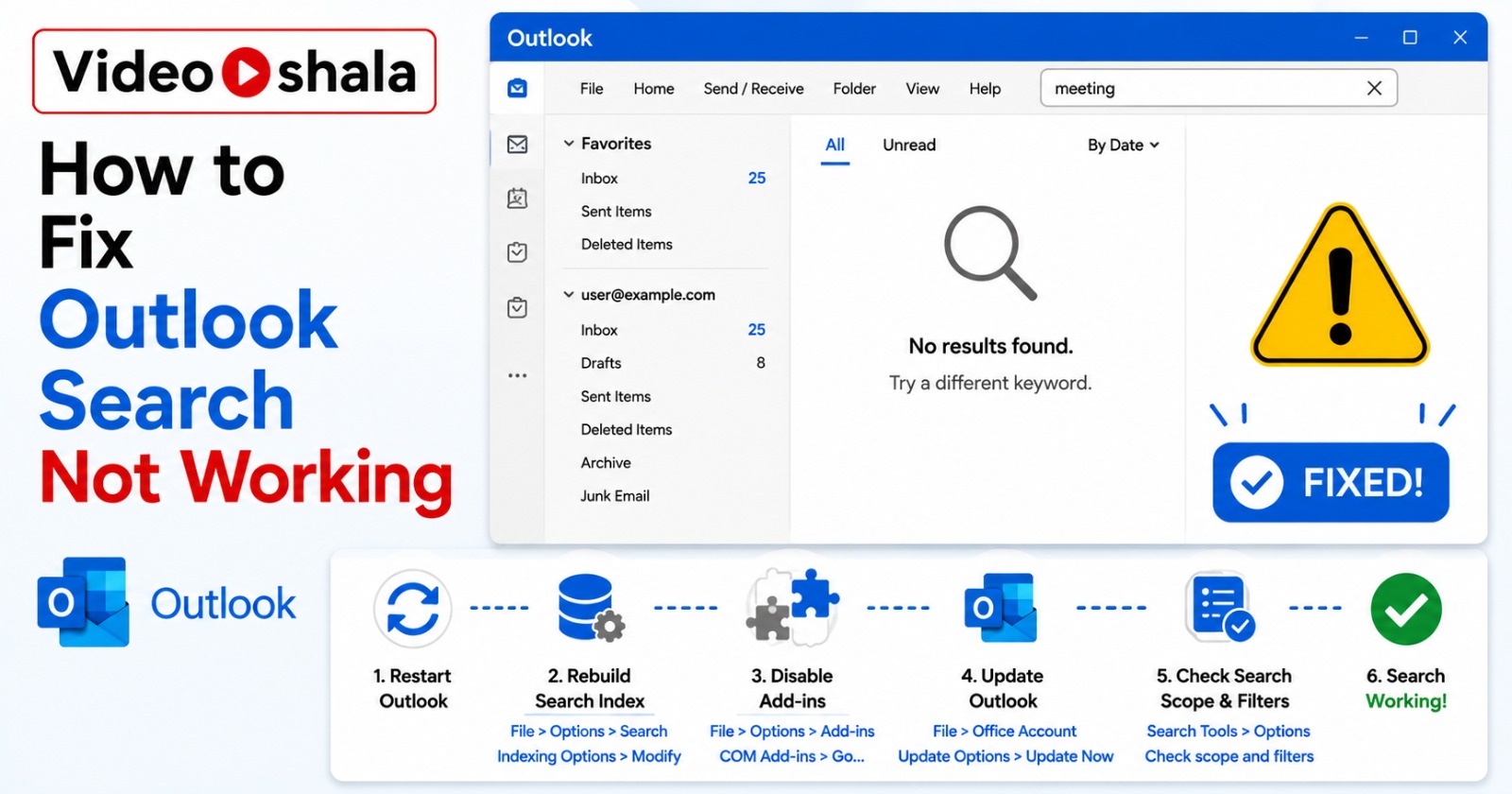
Outlook search breaks in different ways. Sometimes the search bar disappears entirely. Sometimes you type and get zero results. Sometimes you get partial results with old emails missing. Each symptom points to a different root cause and each cause has a different fix.
This guide orders the fixes by likelihood and by time cost. Try them in sequence and stop the moment search starts working. Most users fix it at step 1 or 2 in under five minutes. The deeper fixes (Office repair, profile rebuild) only matter for the stubborn 10% of cases.
First, identify which Outlook you are using
The fix depends on the version. Classic Outlook and new Outlook for Windows behave completely differently under the hood.
| Version | How search works |
|---|---|
| Classic Outlook for Windows | Uses the Windows Search index on your local PC. Most fixes in this guide are for this version. |
| New Outlook for Windows | Searches on Microsoft's servers directly. No local index. Skip to the new Outlook section. |
| Outlook on the web | Server-side search only. Almost never breaks. If it does, try a different browser. |
| Outlook mobile (iOS, Android) | Server-side. Rarely has issues. If broken, sign out and back in. |
Open Outlook. If you see the classic ribbon interface with tabs like Home, Send/Receive, Folder, you are using classic Outlook. If you see a simpler, more modern interface with a sidebar, you are using new Outlook for Windows.
Fix 1: Check the search scope (30 seconds, fixes 40% of cases)
This is the most common cause and the one almost every guide buries at step 5. Outlook has a search scope dropdown next to the search box that controls how far the search reaches.
- Click in the search box at the top of Outlook.
- The Search tab appears on the ribbon.
- Look at the scope dropdown. It usually defaults to Current Folder.
- Change it to All Mailboxes or Current Mailbox.
- Run your search again.
If results appear now, the issue was scope, not search. Change the default by going to File > Options > Search and picking your preferred default scope under "Include results only from".
Fix 2: Check the indexing status (1 minute)
Before rebuilding anything, find out what state the index is actually in.
- Open Outlook, click the search box. The Search tab appears.
- On the Search tab, click Search Tools > Indexing Status.
- A small dialog opens with one of these messages:
- "Outlook has finished indexing all of your items. 0 items remaining.". Index is fine, skip to Fix 4.
- "X items remaining.". Indexing is in progress. Wait for it to finish.
- "Indexing is paused.". Wake the machine or stop power-saving features.
Indexing can take 30 minutes for a 1 GB mailbox up to 6 hours for a 25 GB mailbox. Plug in your laptop and leave Outlook open. If the count never decreases, jump to Fix 3.
Fix 3: Rebuild the search index (30-180 minutes background)
If indexing is stuck or finished but search still returns nothing, the index itself is corrupted. Rebuild from scratch.
- Close Outlook completely. Use File > Exit, not the X button.
- Open the Start menu, type Indexing Options, press Enter.
- In the Indexing Options window, click Advanced.
- On the Index Settings tab, click Rebuild.
- Confirm the warning. Windows clears the index and starts again from scratch.
- Wait. The progress shows at the top of the Indexing Options window.
- Reopen Outlook only after the count reaches 0 (check Indexing Status as in Fix 2).
If Microsoft Outlook is not listed in Included Locations
Click Modify in the Indexing Options window. Scroll the tree to find Microsoft Outlook. If it appears, tick the box and click OK. If it does not appear at all, the search component is not installed correctly. Jump to Fix 5 (Office repair).
Fix 4: Check Cached Exchange Mode mail window (2 minutes)
This one trips up users searching for "old" emails specifically. Cached Exchange Mode downloads only a recent window of mail to your local machine. Older mail exists on the server but not locally. Local search only sees what is downloaded.
- Go to File > Account Settings > Account Settings.
- Double-click your Exchange or Microsoft 365 account.
- Look at the Mail to keep offline slider. Default is often 1 year.
- Drag the slider to All if you want everything searchable locally.
- Click Next, then Done.
- Restart Outlook. The full mailbox starts downloading. This can take hours on slow connections.
If you do not want to download everything, change the search scope to All Mailboxes: that triggers server-side search for older mail. Our companion guide on retrieving old emails in Outlook 365 walks through this trap in detail.
Fix 5: Run Office Quick Repair (5-10 minutes)
If the index rebuild itself fails or the search bar is missing entirely, Office is damaged. Quick Repair fixes most issues without removing your data or account.
- Close Outlook.
- Open Settings > Apps (Windows 11) or Control Panel > Programs and Features (Windows 10).
- Find Microsoft 365 or Microsoft Office, click it, choose Modify.
- If prompted, pick Quick Repair first (faster, no internet needed).
- Click Repair. Wait 3-5 minutes.
- Reopen Outlook and test search.
If Quick Repair does not fix it, run Online Repair from the same menu. Online Repair reinstalls Office completely (takes 15-30 minutes, needs internet). Your mail and settings stay intact: only the Office binaries are replaced. Microsoft's official troubleshooting page documents the same repair flow.
Fix 6: Repair the PST or OST file with scanpst.exe (10-30 minutes)
If your data file is corrupted, indexing never finishes correctly because the indexer cannot read the file. Microsoft ships a built-in repair tool called scanpst.exe (Inbox Repair Tool).
Find scanpst.exe
The tool's location depends on your Office version:
C:\Program Files\Microsoft Office\root\Office16\SCANPST.EXE
C:\Program Files (x86)\Microsoft Office\root\Office16\SCANPST.EXE
Replace Office16 with Office15 for Office 2013. Use Windows Search to find it if you cannot locate it manually.
Find your PST or OST file
Default locations:
C:\Users\YourName\Documents\Outlook Files\
C:\Users\YourName\AppData\Local\Microsoft\Outlook\
Run the repair
- Close Outlook completely.
- Double-click SCANPST.EXE.
- Click Browse and pick your PST or OST file.
- Click Start. The scan takes 5-15 minutes depending on file size.
- If errors are found, tick Make backup of scanned file before repairing and click Repair.
- Reopen Outlook.
scanpst.exe is limited and may fail on large or badly corrupted files. If it cannot repair the file, you may need a third-party PST repair tool.
Fix 7: Rebuild the Outlook profile (15-20 minutes, last resort)
If nothing else works, the Outlook profile itself is corrupted. Creating a fresh profile gives Outlook a clean slate without losing any server-side mail.
- Close Outlook.
- Open Control Panel, search for Mail, click the Mail icon.
- Click Show Profiles.
- Click Add. Name the new profile (e.g., Outlook2).
- Add your email account.
- Set Always use this profile to the new one.
- Open Outlook. Wait for the new profile to sync mail (15 minutes to several hours depending on mailbox size).
- Test search.
If the new profile works, the old one was corrupted. Delete the old profile once you confirm everything synced.
Fix for new Outlook for Windows
New Outlook does not use the Windows Search index, so most of the fixes above do not apply. If new Outlook search fails:
- Pull to refresh the inbox.
- Sign out and back in: Settings > Accounts, click your account, Sign out. Sign back in.
- Update the app via Microsoft Store.
- If still broken, switch back to classic Outlook temporarily (the toggle is at the top right of new Outlook).
Troubleshooting checklist
| Symptom | Most likely fix |
|---|---|
| Search bar missing entirely | Fix 5 (Office repair) |
| Search returns no results at all | Fix 1 (scope), Fix 3 (rebuild index) |
| Some emails missing from results | Fix 4 (Cached Mode), Fix 1 (scope) |
| Search is very slow | Fix 3 (rebuild index), Fix 6 (scanpst) |
| "Something went wrong" error | Fix 5 (repair), Fix 7 (rebuild profile) |
| Search worked yesterday, broken today | Fix 3 (rebuild index) |
| New Outlook search broken | Sign out and back in, then update app |
When to stop troubleshooting
If you have rebuilt the index, repaired Office, run scanpst and created a fresh profile and search still does not work, the issue is beyond local fixes. At that point either contact your IT admin (if you are on a Workspace or Exchange account, the admin may have applied a policy blocking indexing) or contact Microsoft Support.
As a workaround while you troubleshoot, you can search the same mailbox in Outlook on the web, which never breaks because all search runs on Microsoft's servers. If web search also fails on the same mailbox, the problem is server-side or account-level, not your local Outlook.
For related Outlook workflows, see our guides on accessing archived emails in Outlook (covers the Archive folder, Online Archive and AutoArchive PST locations) and retrieving old emails in Outlook 365 (covers Cached Mode and Recoverable Items).