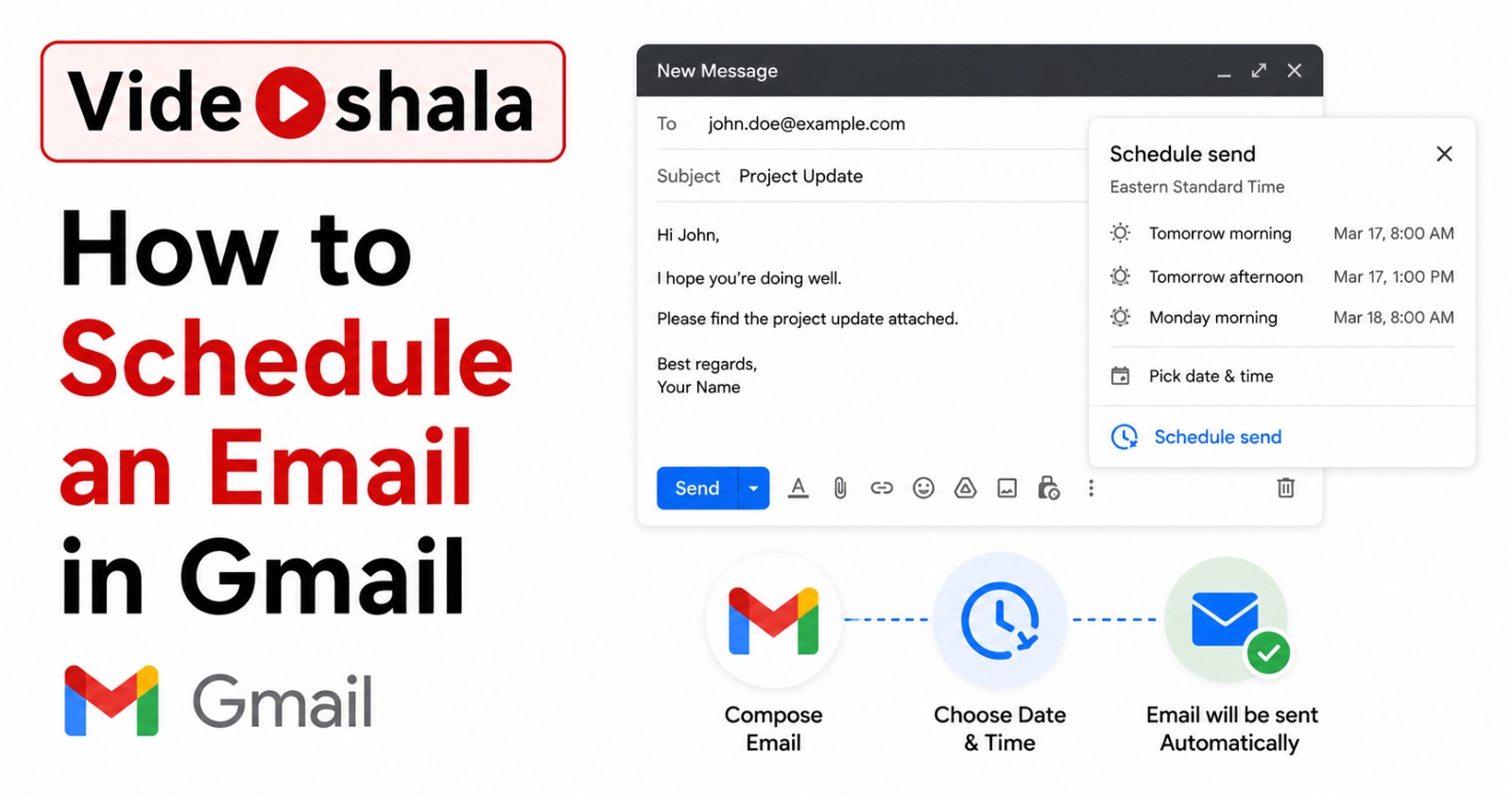
Gmail's Schedule send feature lives under a small arrow next to the Send button. Click it and you can pick a future date and time to deliver your email. The actual setup takes ten seconds. The interesting part is everything Google does not tell you: the 100-email cap, the timezone behaviour when you travel, the fact that recurring sends are not supported and what actually happens when a scheduled email fails.
This guide walks through scheduling on desktop and mobile, editing or cancelling a scheduled email, plus all the limits and workarounds. By the end you will know exactly why your Gmail says "Schedule send" is unavailable and how to send the same email every week even though Gmail does not officially support that.
Schedule an email on desktop
- Open mail.google.com in a browser. Sign in if needed.
- Click Compose at the top left.
- Write your email as normal. Add the recipient, subject and body.
- At the bottom left, do NOT click Send. Instead, click the small down arrow next to the Send button.
- Pick Schedule send.
- Gmail shows two or three preset times (Tomorrow morning, Tomorrow afternoon, Monday morning). Pick one or click Pick date & time for a custom slot.
- In the custom dialog, choose the date and time, then click Schedule send.
The email moves to the Scheduled folder in your sidebar. Gmail shows a brief confirmation toast at the bottom of the screen with an Undo option for a few seconds.
Schedule an email on Android or iOS
- Open the Gmail app.
- Tap Compose at the bottom right.
- Write the email.
- Tap the three-dot menu at the top right, next to the Send icon (the paper plane).
- Tap Schedule send.
- Pick a preset or tap Pick date & time.
- Confirm.
The mobile flow gives you the same three preset times plus a custom picker. The scheduled email also lives in the Scheduled folder, accessible from the hamburger menu on the top left.
Edit or cancel a scheduled email
- Click Scheduled in the Gmail sidebar (or the mobile menu).
- Click the email you want to change.
- Click Cancel send at the top right of the email.
- The email opens back up in a Compose window. Edit the content or just leave it as is.
- Click the down arrow next to Send, pick Schedule send and set a new time.
Cancel send does NOT delete the email. It moves it to the Drafts folder. If you wanted to throw away the email entirely, hit the trash icon in the Compose window after Cancel send.
The timezone trap
This is the gotcha that catches international workers. Gmail schedules emails based on the timezone you were in when you clicked Schedule send, not when the email actually sends.
Concrete example. You are in Delhi at 9 AM IST and you schedule an email to go "tomorrow at 9 AM". Then you fly to London. By the time the email is due to send, your phone clock says it is 3:30 AM (BST). The email still goes at 9 AM IST, which is 3:30 AM London time. Your London colleague gets an email in the middle of the night.
| Situation | What Gmail does |
|---|---|
| Schedule from your home timezone, send from same timezone | Sends at the time you picked, in your local time. |
| Schedule from home, travel to a new timezone before send | Sends at the time you picked in the ORIGINAL timezone. Often unexpected. |
| Schedule for a recipient's local morning | You must do the conversion yourself. Gmail does not adjust for the recipient. |
| Schedule using a VPN to a different country | Gmail may pick up Google Calendar's timezone setting instead. Check Calendar before scheduling. |
The workaround for cross-timezone sends
If you regularly schedule emails for recipients in other timezones, the cleanest fix is to temporarily change your Google Calendar timezone to match theirs, schedule the email, then change it back. Or just calculate the offset manually. The Google Workspace article on changing time zones in Google Calendar covers the setting itself.
What if the scheduled email fails to send?
It happens. Reasons range from the recipient's mail server bouncing the message to your Google account being temporarily flagged for unusual activity. When it happens:
- Gmail does not notify you via email. There is no failure banner.
- The email returns to Drafts, not the Sent folder.
- You may also see a bounce notification in your inbox from mailer-daemon@googlemail.com if the recipient's server rejected the message.
The practical fix: for important scheduled emails, check the Sent folder a few minutes after the scheduled time to confirm it actually went out. If it is not in Sent, look in Drafts.
Recurring emails: the workarounds
Gmail's native Schedule send is one-shot only. You cannot tell it to send the same email every Monday. Three real ways to do recurring sends:
1. Google Apps Script (free, technical)
Apps Script can read a Gmail draft and send it on a trigger you set up (daily, weekly, monthly). Rough outline:
function sendRecurring() {
  var draft = GmailApp.getDrafts()[0];
  var msg = draft.getMessage();
  GmailApp.sendEmail(
    msg.getTo(),
    msg.getSubject(),
    msg.getPlainBody()
  );
}
Then in Apps Script's Triggers menu, set this function to run on a time-based trigger (every Monday at 9 AM, for example). Free, but requires you to keep one draft in your Drafts folder per recurring email and never accidentally delete it.
2. Workspace Marketplace add-on (free or paid)
Add-ons like Email Scheduler for Gmail let you schedule recurring sends from a Google Sheet. The free tier usually caps at 5-20 scheduled emails. Paid tiers go higher. Pick a reputable add-on with positive reviews and check what permissions it asks for. Anything that wants full Gmail access can read every email in your account, so trust matters.
3. Zapier, Make or n8n (paid for volume)
For business workflows, use a no-code automation tool. A typical zap: Schedule trigger (every Monday 9 AM) → Gmail action (Send Email). These tools handle the recurrence reliably and log every send for audit purposes. Worth the cost when an email failure has business consequences.
Common problems and quick fixes
| Problem | Fix |
|---|---|
| "Schedule send" option missing or greyed out | You have hit the 100 scheduled emails cap. Open Scheduled, cancel a few you no longer need. |
| Scheduled email sent at the wrong time | Timezone issue. Either you travelled after scheduling or Google Calendar's timezone differs from your device clock. Check Calendar settings. |
| Scheduled email never appeared in recipient's inbox | Check your Sent folder. If it is not there, check Drafts and Spam. Look for bounce messages from mailer-daemon@googlemail.com. |
| Cannot find the Schedule send button on mobile | The button hides behind the three-dot menu next to the Send icon, not in the compose toolbar. Easy to miss on small screens. |
| Cancelled a scheduled email and it disappeared | Cancel send moves it to Drafts, not delete. Open Drafts to find it. |
When to actually use Schedule send
Schedule send is most useful for three patterns. First, writing emails outside business hours and not wanting to look like you work weekends. Compose now, send Monday morning. Second, sending across timezones where you want the message to land at a sensible local hour for the recipient. Third, sequencing follow-ups (initial reply, follow-up in two days, second follow-up in five days).
For sales and support workflows that need scheduled-plus-reminded behaviour, the built-in feature is too thin and you should look at a dedicated tool. For everything else, the native button is fine and free.
If you are using Gmail for serious workflow automation, you will also want to know about setting up email forwarding in Gmail for inbound routing rules. Together, forwarding and scheduling give Gmail most of what people buy paid email tools for.