You have a Gmail account from 2008. Somewhere in there is a flight ticket from 2014, an old college friend's first email, a receipt you need for taxes. The basic search bar is fine for finding last week's mail but useless for finding something from 2014 unless you remember an exact phrase.
Gmail's search has a hidden layer of operators that almost no one uses. They let you filter by date, sender, size, attachment, label and combinations of all of these. There is also a one-click trick that jumps you to your very first Gmail message, which I will start with because it is the fastest answer for the most common question.
Jump straight to your oldest email (the trick)
Gmail has a "go to my first ever email" feature that almost nobody knows about. It hides behind the email counter at the top right of the list.
- Open Gmail on desktop.
- In the left sidebar, click All Mail. Expand More if you do not see it.
- Look at the top right of the email list. You will see something like
1-50 of 12,847. - Hover over that counter. An arrow icon appears next to it.
- Click the arrow, pick Oldest.
- Gmail jumps to the last page. The very first email at the bottom of that page is your earliest Gmail message ever.
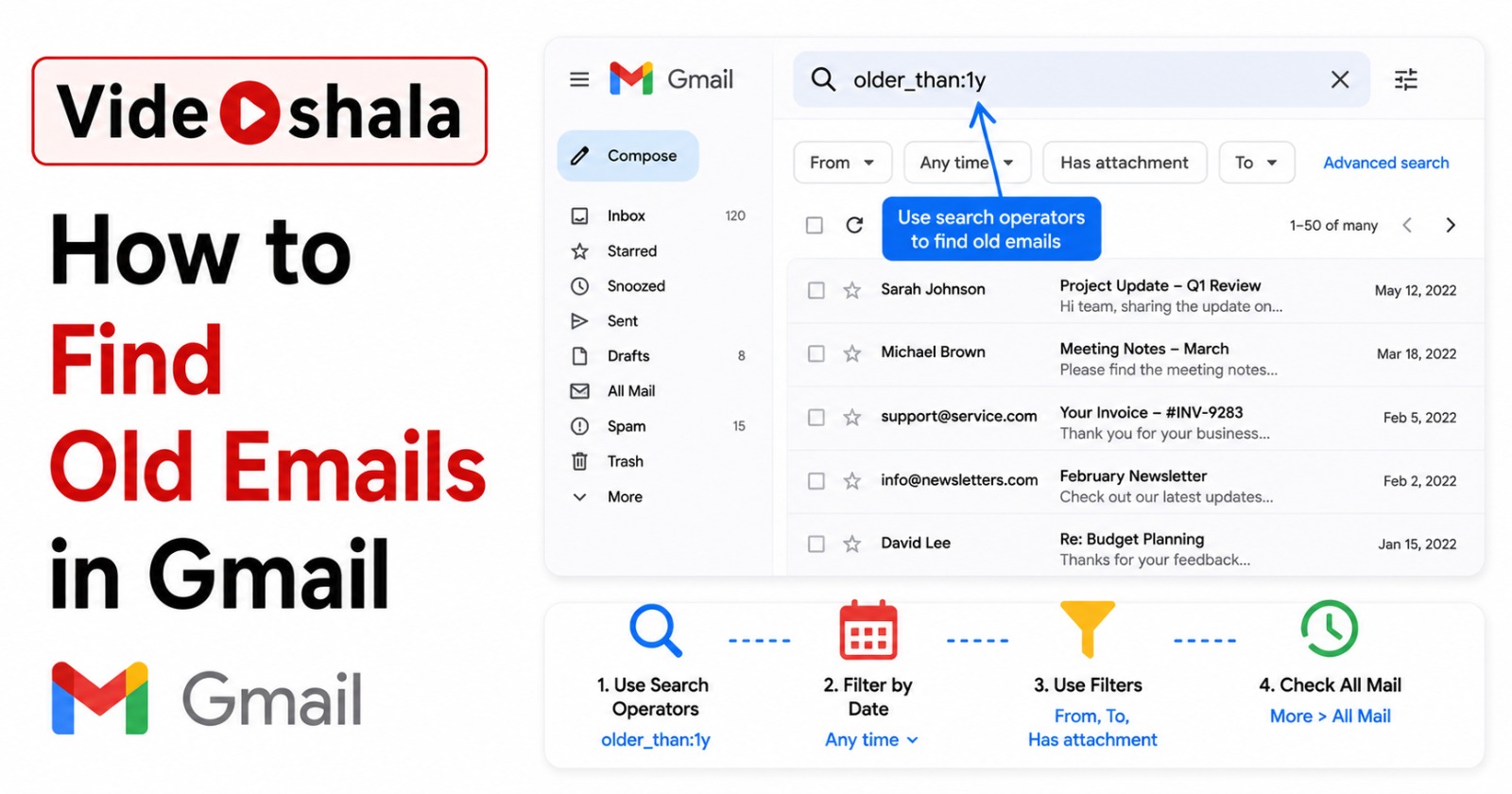
This works on desktop only. On the mobile app, type older_than:10y in the search bar instead. Gmail will show your oldest messages (assuming the account is more than 10 years old).
The search operators that matter
Gmail accepts about 50 search operators in total, but you only need 7 to cover 95% of finding-old-email scenarios.
| Operator | What it does |
|---|---|
before:2020/01/01 |
Emails received before this absolute date. YYYY/MM/DD format only. |
after:2020/01/01 |
Emails received after this absolute date. |
older_than:6m |
Emails older than 6 months relative to today. Use d, m or y for days, months, years. |
newer_than:30d |
Emails newer than 30 days. Same units as older_than. |
from:name@example.com |
Emails from a specific sender. Wildcards work: from:*@bank.com |
has:attachment |
Emails with any attachment. |
larger:5M |
Emails larger than 5 megabytes. Use larger or smaller. Useful for storage cleanup. |
YYYY/MM/DD with forward slashes. Indian date formats like 19/05/2026 or 19-05-2026 will silently fail or return nothing. Always year first, then month, then day. For 19 May 2026 the correct form is 2026/05/19.
before: vs older_than: when to use each
Both filter old emails but they behave differently.
Use before:YYYY/MM/DD for absolute dates. "Show me everything before my wedding date in March 2018." The query before:2018/03/15 always means the same thing, regardless of when you run it.
Use older_than:Nd/m/y for relative dates. "Show me everything older than 2 years." The query older_than:2y means something different every time you run it. Today it shows mail from before May 2024. Next year, mail from before May 2025.
For saved searches and bookmarks, older_than: is usually what you want because it adjusts automatically. For one-off queries about a specific date, use before:.
Combine operators for power searches
Gmail treats spaces between operators as AND. Stack as many as you want.
Find old bank statements:
from:*@hdfcbank.com older_than:2y has:attachment
Find old large attachments to clean up storage:
has:attachment larger:10M older_than:1y
Find emails from one person within a specific date range:
from:colleague@company.com after:2023/01/01 before:2023/06/30
Find old invoices excluding paid ones:
subject:invoice older_than:1y -subject:paid
Find old PDFs only:
filename:pdf older_than:3y
Find old emails OR receipts:
(invoice OR receipt) older_than:2y
The minus sign excludes terms. Parentheses group OR conditions. Use both freely.
Use Gmail's Advanced search if you do not want to type operators
If memorising operators feels like work, the visual Advanced search builder generates them for you.
- Click the filter icon on the right side of the search bar (it looks like sliders or a small triangle).
- Fill in the fields: From, To, Subject, Has the words, Doesn't have, Size, Date within.
- Pick a Date within range from the dropdown. Options: 1 day, 3 days, 1 week, 2 weeks, 1 month, 2 months, 6 months, 1 year.
- Set the reference date.
- Click Search.
Gmail runs the search and shows the equivalent operator string in the search bar. Useful for learning the syntax. After a few uses you will probably switch to typing operators directly because it is faster.
Storage cleanup: find the emails eating your 15 GB
Free Gmail accounts share 15 GB across Gmail, Drive and Photos. When you run out, Gmail stops receiving new mail. The fastest way to free space is to find and delete old emails with large attachments.
Find the biggest emails first
larger:25M
This shows everything over 25 MB. Often there are 5-10 of these in an old Gmail account: old presentations, video files someone emailed you, backup zip files. Deleting 5 of these can free 200+ MB.
Combine size with age
larger:5M older_than:3y
Large attachments older than 3 years. Most of these are safe to delete. Add specific filters like -from:boss@company.com if you want to preserve mail from certain senders.
Empty the Spam and Trash
Both folders auto-delete after 30 days, but if you regularly receive spam, the 30-day buffer can hold a few hundred MB. Open them manually and click Empty Spam now or Empty Trash now.
Search inside Spam, Trash and All folders
By default, Gmail search skips Spam and Trash. If you genuinely cannot find an email, expand the search scope.
| Operator | Effect |
|---|---|
in:anywhere | Includes Spam and Trash in the search |
in:spam | Searches only Spam (last 30 days) |
in:trash | Searches only Trash (last 30 days) |
label:unread | Only unread mail (works with all other operators) |
is:important | Only mail Gmail flagged as important |
Searching Spam and Trash is a last-resort step for messages that legitimately got filtered out. After 30 days the mail is gone permanently and no search will find it. For long-term archiving, use the Archive button instead of Delete: archived mail stays searchable forever (or until you hit storage limits).
Common problems and quick fixes
| Problem | Fix |
|---|---|
| Date operator returns no results | Wrong format. Must be YYYY/MM/DD with forward slashes. Not DD/MM/YYYY. |
| Email I know exists is not in search results | Add in:anywhere to include Spam and Trash. Also check if a filter auto-deleted or labelled it. |
| The "Oldest" sort option does not appear | You are in Inbox view. Switch to All Mail in the left sidebar. |
| Wildcard from:*@domain.com returns nothing | Wildcards work for full email addresses only. Use the visual Advanced search From field for partial matches. |
| Same query returns different results on desktop and mobile | Account sync delay. The Gmail apps cache differently. Try forcing a sync or running the same search at mail.google.com. |
The fast recipe for finding any old email
Three queries cover most lost-email scenarios.
Lost flight or hotel booking: subject:(booking OR confirmation OR itinerary) older_than:1y has:attachment
Lost tax document: subject:(invoice OR receipt OR tax OR PAN) older_than:1y from:*@company.com
Lost personal email from a specific person: from:friend@example.com older_than:3y
Copy any of these, edit the parts in capitals or after the colons to match your situation and paste into Gmail's search bar. Adjust the time period as needed.
If you use both Gmail and Outlook, the equivalent for Outlook is covered in our guide on retrieving old emails in Outlook 365 and accessing archived emails in Outlook. The mental models are different (Outlook has three separate archives, Gmail has one searchable All Mail) but the goal is the same.