You just sent the budget spreadsheet to the wrong client. Or the email starting with "Hey loser" went to your boss instead of the friend it was meant for. Outlook has a Recall Message feature that tries to delete the email from the recipient's inbox before they read it. The honest answer to the next question (does it work?) is: only when four very specific conditions are all true.
This guide walks through how to recall the message, what the four conditions actually are, what the recipient sees when you try and the proactive Undo send setting that catches mistakes before they leave your Outbox. If you handle a lot of email, the proactive fix is the one worth your time.
The four conditions for recall to succeed
Read this section first. If any of these is false for your situation, recall will fail and the recipient will get a notification that you tried.
| Condition | Why it matters |
|---|---|
| Same Microsoft 365 tenant | Recall traffic moves through Exchange. It cannot reach mailboxes outside your organisation. Sending to Gmail, Yahoo or any external Outlook = fail. |
| Both accounts on Exchange or M365 | POP and IMAP accounts download mail to a local client. Once downloaded, the server has no way to retract it. |
| Recipient has not opened the email | Recall only removes unread messages. Once opened (including in the reading pane), the email is "read" and recall fails. |
| Email is still in the Inbox folder | If a mailbox rule auto-sorted the email into a subfolder, recall cannot find it. This is the silent killer most users never check. |
Realistically, recall works inside large enterprise tenants within the first few minutes after sending. Outside that window or to external recipients, expect failure.
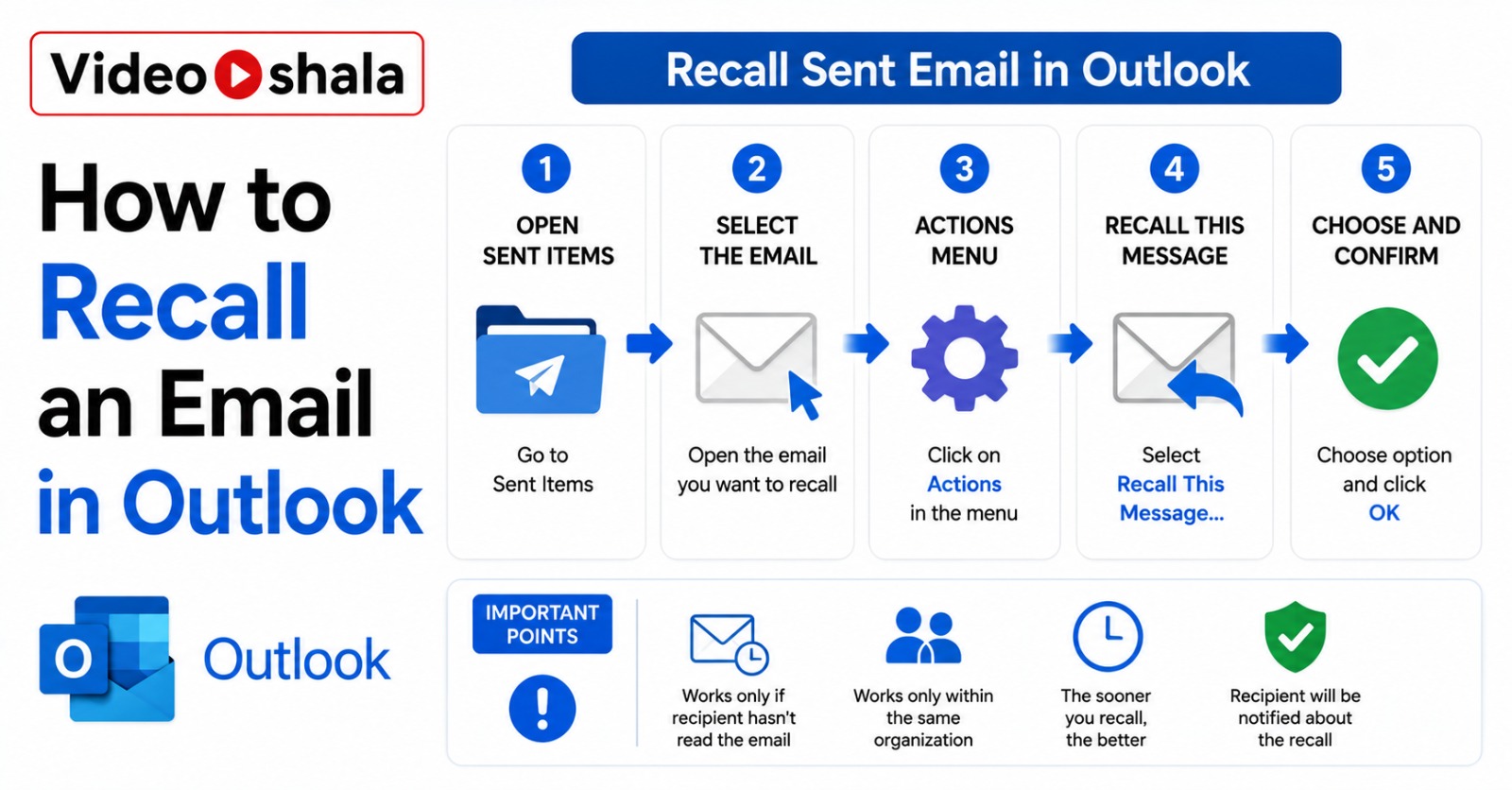
Recall a message in classic Outlook for Windows
- Open classic Outlook.
- Click Sent Items in the left folder pane.
- Double-click the email you want to recall (just selecting it in the reading pane does NOT work).
- In the message window, click the Message tab on the ribbon.
- Click Actions > Recall This Message. If the ribbon is simplified, click the three-dots More commands icon first.
- Pick one of two options:
- Delete unread copies of this message. Removes the email if unread.
- Delete unread copies and replace with a new message. Removes the original and opens a draft so you can send a corrected version.
- Tick Tell me if recall succeeds or fails for each recipient so you get the report.
- Click OK.
If you do not see Recall This Message
Two reasons it may be hidden. First, you are signed in to a POP or IMAP account, not Exchange or M365. Recall does not exist on those. Second, your IT admin has disabled the feature for your organisation. Check with the admin if you genuinely need it back.
Recall a message in new Outlook for Windows (and Outlook on the web)
The new Outlook UI has a dedicated Recall Message button instead of the Actions menu.
- Open new Outlook or outlook.office.com.
- Click Sent Items in the folder pane.
- Double-click the email to open it in a separate window.
- In the message window's toolbar, click Recall Message.
- Confirm by clicking OK in the dialog.
- Wait for the Message Recall Report to arrive in your inbox (usually under 30 seconds).
The new Outlook UI does NOT offer a "replace with new message" option in the same dialog. If you want to send a corrected version, recall first, then start a fresh email.
The recall report (what success or failure looks like)
Within 30 seconds of clicking OK, you get an email titled "Message Recall Report for message [original subject]". Click the link inside to see per-recipient results.
| Status | What it means |
|---|---|
| Succeeded | Original message deleted from recipient's mailbox before they read it. |
| Failed | Recipient had opened the email, moved it via a rule or is on an incompatible account. Recipient also got a notification that you tried. |
| Pending | Recipient's mailbox is temporarily unavailable. Outlook keeps retrying for up to 24 hours. |
What you cannot recall
Be realistic about expectations. Recall does NOT work in any of these scenarios.
- External recipients: Gmail, Yahoo, Hotmail, iCloud, any non-M365 corporate address.
- Personal Outlook.com or Hotmail accounts: even though they are "Outlook" branded, they do not support recall.
- Mail sent from Outlook mobile: the iOS and Android apps cannot initiate a recall as of mid-2026. Use the desktop or web app instead.
- Mail the recipient has read: including reading-pane previews. Once marked read, recall fails.
- Mail moved by recipient rules: client-side or server-side rules that auto-file mail block recall.
- Distribution list with mixed addresses: recall succeeds for internal recipients on the list, fails for external ones. The external recipients still get the original message.
Set up Undo send (the proactive fix)
Recall is reactive and unreliable. Undo send is proactive: it holds your email in the Outbox for a few seconds or minutes before actually sending it. If you spot a mistake during the delay, click Undo Send and the email never leaves your computer.
Classic Outlook for Windows: defer delivery rule
Classic Outlook does not have a one-click delay setting. Use a rule instead.
- Click File > Manage Rules & Alerts.
- Click New Rule.
- Under Start from a blank rule, pick Apply rule on messages I send.
- Click Next without selecting any conditions. Confirm "this rule applies to all messages".
- Tick Defer delivery by a number of minutes.
- Click the underlined "a number of" link and set the delay (1-120 minutes). 1-2 minutes is enough for most mistake-spotting.
- Click Next, then Finish. Name the rule something like "Delay all outgoing mail".
From now on, every email you send sits in the Outbox for the delay period. To cancel, open Outbox, double-click the message, click Cancel send or edit it before the timer expires.
New Outlook for Windows and Outlook on the web: Undo send setting
- Click the gear icon to open Settings.
- Pick Mail > Compose and reply.
- Scroll to Undo send.
- Drag the slider to 10 seconds (the maximum).
- Click Save.
10 seconds is short but enough to catch the most common mistakes: typing the wrong recipient name from the autocomplete dropdown, forgetting the attachment after writing "see attached", sending before adding a subject.
When recall fails, send the apology email well
If recall fails (or you never had a chance to use it), the practical fix is a follow-up. A good apology email is short, specific and does not over-explain. Three sentences max.
Example for a wrong-recipient situation:
Subject: Please disregard previous email

Hi Anjali,

Apologies, the previous email was meant for a different
Anjali in our address book. Please delete it. Thank you.
For attachment errors:
Subject: Correct attachment for budget review

Hi Sameer,

Apologies, my previous email had the wrong file attached.
The correct budget spreadsheet is attached here.
Do not say "I tried to recall the email", do not blame autocomplete, do not over-apologise. Brief, fix the problem, move on. The longer the apology, the more attention it draws to the mistake.
Common problems and quick fixes
| Problem | Fix |
|---|---|
| Recall succeeded notification, but recipient still has the email | Email was already opened or moved by a rule between when you sent and when you recalled. Recall report can lag the actual outcome. |
| Recall This Message option is missing | You are on a POP or IMAP account, not Exchange or M365. Or your admin disabled the feature. |
| Cannot recall from Outlook on iOS or Android | Expected. Mobile apps cannot initiate recall as of 2026. Open new Outlook or web Outlook to do it. |
| Want to recall to multiple recipients but only need to recall from one | Not possible per-recipient. Recall always targets all original recipients. Send a separate apology to the one who needed correction. |
| Sent to wrong Gmail address | Recall will not work. Send an apology email to the wrong recipient asking them to delete and forward the correct version to the right person. |
Should you bother with recall at all?
Realistic answer: only if you work in a large M365 tenant where most of your email goes to colleagues on the same domain. In that situation, recall succeeds maybe 30-40% of the time on internal mail caught within 5 minutes. For external mail, the success rate is effectively zero.
The Undo send delay (or the defer-delivery rule in classic Outlook) catches far more mistakes for far less effort. Set the 10-second delay today. After two weeks, you will have used it to undo at least one bad send. That is more saves than recall has given anyone in the last year.
If you want to take this further with proactive email controls, our guide on scheduling an email in Gmail covers the equivalent feature on the Gmail side. And if you are looking at email security generally, enabling two-factor authentication is a higher-impact protective measure than recall will ever be.