Saving a CSV file looks simple: File, Save As, pick CSV, done. Then you open the file somewhere else and your customer names with accents have turned into question marks, your phone numbers have lost their leading zeros and your Hindi text is garbled. The problem is never the CSV part. It is the encoding, the line endings or Excel auto-converting your data before you even noticed.
This guide covers how to save a CSV file the way you actually want it. Across Excel, Google Sheets, Notepad and Numbers. Plus the four CSV variants Excel offers, the Excel re-open trap and how to handle commas inside your data.
The fastest method, for each application
| Application | How to save as CSV UTF-8 |
|---|---|
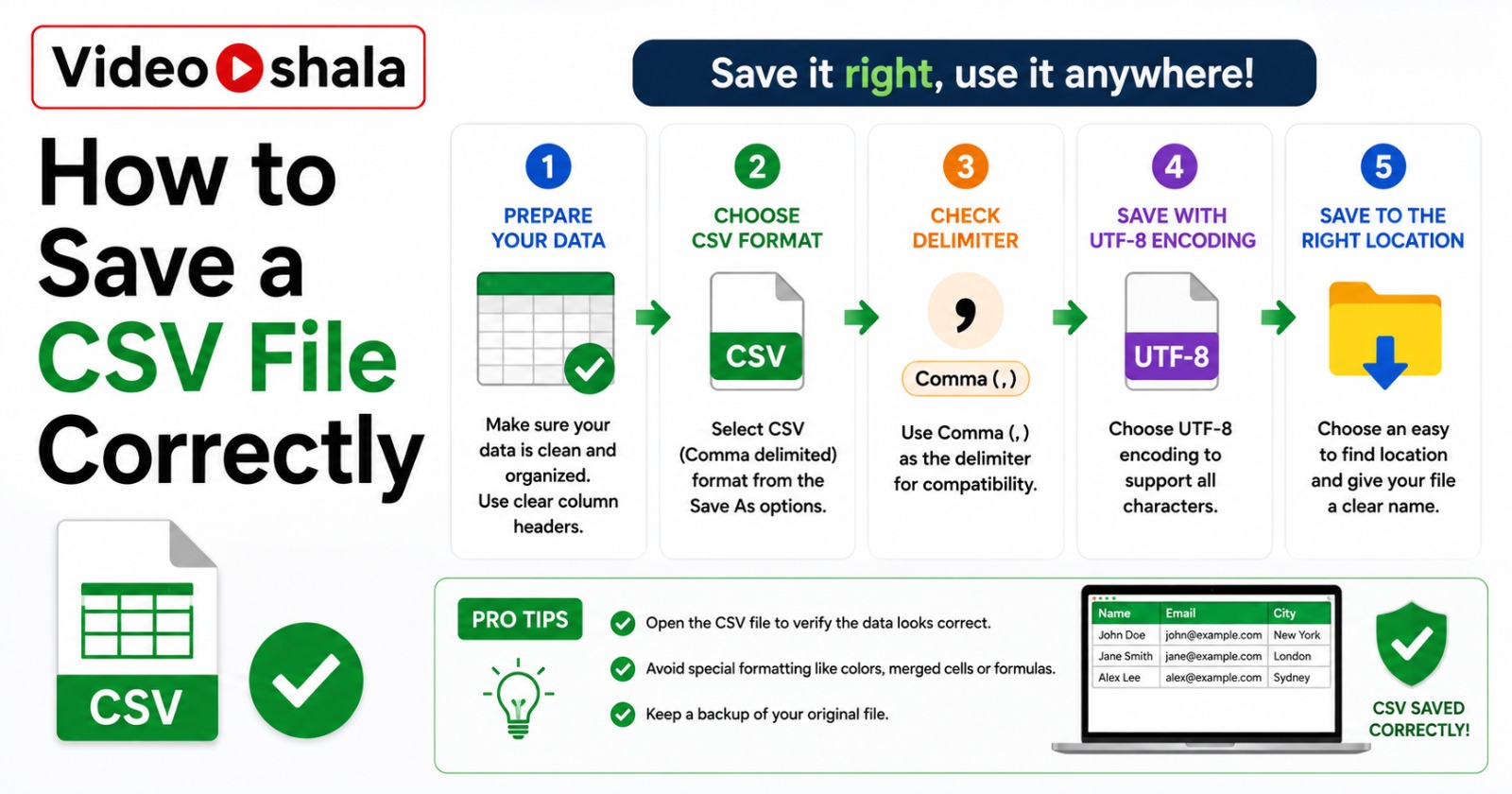
| Excel 2016+ (Windows) | File, Save As, pick CSV UTF-8 (Comma delimited) (*.csv) from the Save as type dropdown |
| Excel for Mac (recent) | File, Save As, pick CSV UTF-8 (Comma delimited) (.csv) |
| Excel 2013 or older | Save as Unicode Text first, open in Notepad, Save As with Encoding set to UTF-8 and rename the extension to .csv |
| Google Sheets | File, Download, Comma Separated Values (.csv). Always UTF-8 by default |
| Apple Numbers | File, Export to, CSV, Advanced Options, Text Encoding: Unicode (UTF-8) |
| LibreOffice Calc | File, Save As, pick CSV, tick Edit filter settings, set Character set to Unicode (UTF-8) |
If you are in any doubt about which encoding to pick, pick UTF-8. It is the modern default and works with every system that handles CSV.
Save a CSV file from Excel (the standard path)
- Open your spreadsheet in Excel.
- Click File > Save As. On newer Excel, you can also press F12.
- Choose a folder.
- Type the filename without the extension. Excel adds .csv automatically.
- In the Save as type dropdown, you will see several CSV options. Pick CSV UTF-8 (Comma delimited) (*.csv).
- Click Save.
- Excel may show a warning saying "Some features in your workbook might be lost if you save as CSV". Click Yes to continue.
The file is now on disk. Only the active sheet is saved. Multiple sheets need multiple CSV files.
The four CSV variants Excel offers (and when to use each)
Excel's Save as type dropdown shows multiple CSV options that look almost identical. They are not. Each one writes the file differently.
| Variant | What it actually does |
|---|---|
| CSV UTF-8 (Comma delimited) | Comma-separated, UTF-8 encoded with BOM, Windows CRLF line endings. Best modern default. Pick this unless you have a specific reason. |
| CSV (Comma delimited) | Comma-separated, ANSI/Windows-1252 encoding, Windows CRLF line endings. Breaks on any non-English character. Use only for English-only data going to legacy Windows systems. |
| CSV (Macintosh) | Comma-separated, Macintosh encoding, CR-only line endings. Use only when explicitly told to by a macOS-only legacy tool. |
| CSV (MS-DOS) | Comma-separated, OEM-DOS encoding (code page 437 or 850), CRLF line endings. Essentially never the right choice in 2026 unless you are exporting to a DOS-era database. |
Save a CSV file from Google Sheets (the cleanest path)
Google Sheets has one CSV format and it is correct: UTF-8 with LF line endings.
- Open the spreadsheet in Google Sheets.
- Click File > Download.
- Pick Comma Separated Values (.csv).
- The file downloads to your usual Downloads folder.
That is it. No encoding picker, no Save as type dropdown, no warnings about features being lost. If your data contains accents, Hindi, Tamil or emoji, they survive intact. This is why we often recommend the round trip: open the file in Sheets, do your edits, download as CSV. The result is clean every time.
Save a CSV file from Notepad (manual encoding override)
If you have a CSV that already exists and just need to change its encoding, Notepad is the simplest tool. This is the standard workaround for old Excel versions that do not have a CSV UTF-8 option.
- Open the CSV file in Notepad. Right-click the file, Open with > Notepad.
- Click File > Save As.
- In the Save as type dropdown, pick All Files.
- At the bottom of the dialog, change the Encoding dropdown to UTF-8.
- Keep the .csv extension on the filename.
- Click Save. Notepad may ask to overwrite, click Yes.
The file is now UTF-8 encoded. Do not open it again in Excel after this or you may lose the encoding.
The Excel auto-conversion trap (and how to avoid it)
Excel mangles CSV data the moment you open the file. Three classic failures:
| Data type | What Excel does to it |
|---|---|
| Phone number 09876543210 | Strips the leading zero to 9876543210 because Excel reads it as a number, not text |
| Long ID 123456789012345 | Converts to scientific notation 1.23457E+14 and you lose the original value forever |
| Date 03/05/2026 | Interprets as 3 May or 5 March depending on your regional setting, then reformats it to local default |
| Product code 1E10 | Interprets as 10 to the 10th power and converts to 10000000000 |
If Excel has done this and you save the file, the corrupted version overwrites the original. The fix is to import instead of open.
The import path that preserves types
- Open Excel with a blank workbook.
- Go to Data > Get Data > From Text/CSV.
- Pick your CSV file.
- In the preview window, click Transform Data to open Power Query.
- For each column that should stay as text (phone numbers, IDs, product codes), right-click the column header, Change Type, pick Text.
- Click Close & Load.
The data lands in Excel as text where you said so, preserving leading zeros and long numbers. When you re-save, the values stay intact. Microsoft's official text and CSV import guide covers more advanced import options.
Commas inside your data: the quote-wrapping rule
What if a cell's value contains a comma? Without escaping, the comma would be read as a column separator and break the row. CSV solves this by wrapping values that contain commas (or quotes or newlines) in double quotes.
name,address,phone
Rakesh,"525, City Centre, Sector 12, Dwarka",9876543210
Priya,"42, Connaught Place",9123456789
Excel and Google Sheets handle this automatically when you Save As CSV. They wrap values that need wrapping and leave the rest alone. If you generate CSV files from custom scripts (Python's csv module, Node's fast-csv, PHP's fputcsv), make sure the library follows RFC 4180, the CSV standard.
If a value contains a double quote
Double the inner quote. The value She said "hi" becomes "She said ""hi""" in the CSV. Excel handles this transparently, custom scripts need to know about it.
Common problems and quick fixes
| Problem | Fix |
|---|---|
| Accents show as ??? after saving | Save as CSV UTF-8 instead of plain CSV. If old Excel, use Google Sheets or the Notepad workaround. |
| Leading zeros disappeared from phone numbers | Excel auto-converted them. Re-import the original via Data, From Text/CSV with the column set to Text type. |
| Long IDs turned into scientific notation | Same fix as above. Set the column type to Text during import. |
| Import tool rejects the file | Could be line endings (CRLF vs LF), BOM markers or wrong delimiter. Open in Notepad++, check Encoding and EOL menus. |
| CSV opened, looks fine in Excel, breaks elsewhere | Excel may have saved it as ANSI silently after editing. Re-save through Google Sheets to force UTF-8. |
| Rows shifted by one column | A value in row N has an unescaped comma or quote. Open in a text editor and look for the row that has the wrong number of commas. |
Picking the right CSV variant in 30 seconds
You only need to remember three rules. First, if the data is going anywhere modern (a SaaS app, a database, a partner system, an API), use CSV UTF-8. Second, if you are between applications you control (Excel to Excel on Windows with English-only data), plain CSV works. Third, if you are sending the file to Mac users in a creative agency, the Mac CSV variant exists but realistically CSV UTF-8 still works almost everywhere.
The encoding decision matters more than people realise. A wrong encoding silently corrupts the very text you cared about preserving and you may not notice until a colleague calls to complain that all the names are garbled.
If you are working with contact data specifically, our companion guides cover the full pipeline: importing a CSV file to contacts, sending a CSV file by email and creating a VCF file of contacts as the alternative format. Save it right, send it right, import it right.