Before you try to recover a deleted Gmail email, check one thing first: it is very often not deleted at all. There are two common reasons a message disappears. You may have archived it, which leaves it sitting untouched in All Mail. Gmail may also have filed it as spam. Neither of those is deletion. Neither needs a recovery step.
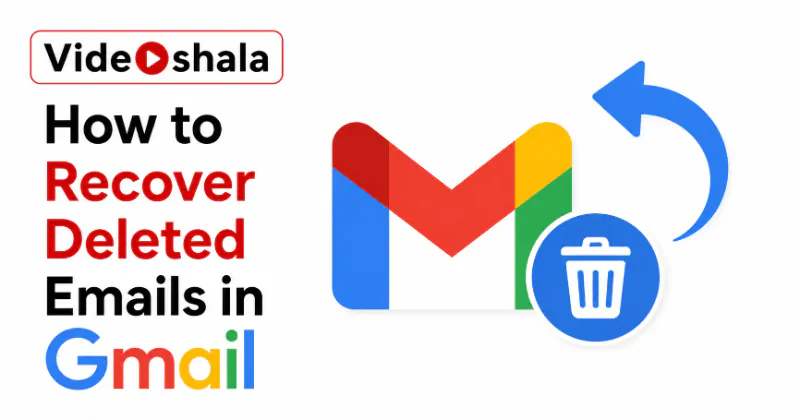
Most guides on this topic send you straight to the Trash folder, when the message you are looking for was frequently never in Trash to begin with. This guide covers the fast native fixes in order: where to look before you assume the worst, how to pull a message back out of Trash on desktop and mobile, plus what your real options are once the 30 day window has passed.
First, check the two places people skip
When an email goes missing, the instinct is to open Trash. Often the message is not there because it was never deleted. Start with All Mail in the left sidebar of Gmail. Archived messages live here permanently and are never auto removed, so a message you swiped away on your phone is probably waiting in this view. You can also type in:all followed by a keyword in the search bar to jump straight to it.
Next, open Spam. Gmail sometimes files a genuine message as spam, where it waits until you act on it. Select the message then click Not Spam to send it back to your inbox. If the email turns out to be archived rather than deleted, our guide on finding old emails in Gmail shows you how to dig it out of All Mail quickly.
Why the email vanished in the first place
Knowing the cause helps you look in the right spot. On phones the default swipe action in the Gmail app is often set to Archive, so a quick swipe to clear your inbox quietly moves a message to All Mail rather than deleting it. That single setting explains a large share of missing emails, because people assume they deleted something they only archived.
The second common cause is a filter. If you once created a rule that skips the inbox or removes mail from a sender, every new message that matches it is handled silently. Open Settings then Filters and Blocked Addresses to review what your rules actually do. The third cause is a stray Select All. On both desktop and the app Gmail can select a whole page of messages at once, so one mistaken tap on Delete can sweep dozens of emails into Trash together.
How long you have to act
Gmail does not erase a message the moment you press Delete. It moves the message to Trash, where it stays for 30 days. During those 30 days you can move it back to your inbox in a couple of clicks. The countdown starts from the day you deleted the message, not from the day it arrived. After 30 days Gmail removes the message from Trash permanently. After that a personal Gmail account cannot recover it through any built in option. This behaviour is documented in Google's official Gmail Help. The lesson is simple: the sooner you check Trash, the more room you have.
Recover deleted emails from Trash on a computer
- Open Gmail in your browser then look at the left sidebar.
- Click More to expand the menu if you do not see Trash, then click Trash.
- Check the box on the left of each message you want to restore.
- Click the Move to icon at the top of the list.
- Choose your inbox or any label as the destination. The message leaves Trash then returns to that location.
To find one specific message in a crowded Trash folder, type in:trash followed by a keyword from the subject line or the sender name in the search bar.
Recover deleted emails on Android and iPhone
The steps are nearly identical on both phone platforms.
- Open the Gmail app then tap the Menu icon at the top left.
- Tap Trash. On some layouts you tap More first to reveal it.
- Touch and hold each message you want to restore so it becomes selected.
- Tap the More icon at the top right, shown as three dots.
- Tap Move, then choose your inbox as the destination.
One thing worth knowing about the app: deleted drafts behave differently from deleted mail. A draft you delete is not kept in Trash, so it cannot be brought back later. Only sent and received messages pass through the 30 day Trash window.
Check every place you read Gmail
A message can look gone on one device while it still exists on another. If you read the same account in the Gmail app, in a browser, on a tablet, in Outlook, in Apple Mail or in Thunderbird, open each one and search for the message before you give up. A client that has not synced recently may still hold a local copy that the web view no longer shows. Searching by sender or by a phrase from the body across each device is the quickest way to confirm whether the email is truly gone or simply out of sync.
Stop losing important emails
The cleanest long term fix is to archive the messages you want to keep instead of deleting them. Archiving removes a message from the inbox while keeping it forever in All Mail, with no 30 day clock attached. You get a tidy inbox without any risk of the message being purged.
If your phone keeps archiving or deleting mail by accident, change the swipe actions. In the Gmail app open Settings, tap General settings, then open Mail swipe actions to set the left or right swipe to whatever you prefer. Setting one swipe to Archive while keeping delete off your swipe gestures stops most accidental losses. For mail you truly cannot afford to lose, give it a label so you can always find it through the label list in the sidebar.
Things to keep in mind
| Detail | What it means |
|---|---|
| Trash retention | Messages sit in Trash for 30 days from the day you delete them, then they go permanently. |
| Emptying Trash | Choosing Empty Trash or Delete Forever removes messages at once. There is no recovery after that. |
| Spam folder | Spam also clears automatically after 30 days. Mark a real message Not Spam to keep it. |
| Deleted drafts | A deleted draft is not stored in Trash. It cannot be recovered once it is removed. |
| Mail clients | If you read Gmail in Outlook or Apple Mail, a delete there syncs to Trash as well. |
What to do after 30 days
If the 30 day window has already passed on a personal Gmail account, the honest answer is that the message is gone. Google does not keep a recovery copy of individual account mail past that point. Be wary of any service that promises to retrieve permanently deleted personal Gmail, because the data simply is not there to retrieve.
Google Workspace accounts are different. After the 30 days in Trash end, an administrator gets an extra 25 days to restore deleted mail using the Restore data tool in the Admin console, as set out in Google's Workspace admin guide. That gives a managed user a total window of roughly 55 days from the date of deletion. If an organisation runs your account, your fastest route is to ask your admin while that window is still open. If you read Gmail through a desktop client, deletions there also sync to Trash, so see our walkthrough of the Gmail app password if your client keeps disconnecting and dropping messages.