Before you spend 20 minutes hunting through menus for AutoArchive settings, check one thing: which version of Outlook are you running. If it is New Outlook for Windows, AutoArchive is not there, it never will be and no amount of clicking will find it. Microsoft removed the entire feature from the new app. Most guides bury this fact halfway down the page after you have already wasted time looking. That single distinction is the whole reason this topic confuses people, so we are leading with it.
This guide covers the real Classic Outlook AutoArchive setup with every dialog option explained, the three different archiving mechanisms people constantly confuse and the Sweep-rule workaround for New Outlook users who cannot or will not switch back. Once you know which mechanism you actually need, the setup takes two minutes. If you need to find mail you have already archived, see our companion guide on accessing archived emails in Outlook.
Which Outlook do you have?
This determines everything. There are three Outlook clients in 2026 and only one has AutoArchive.
| Outlook version | Has AutoArchive? |
|---|---|
| Classic Outlook for Windows (desktop app) | Yes. Full AutoArchive engine with .pst archiving. This is the only version that has it. |
| New Outlook for Windows (the redesigned app) | No. AutoArchive and Clean Up Old Items were both removed. Use Sweep rules instead. |
| Outlook on the web (outlook.com or work webmail) | No. No AutoArchive. Sweep rules and server-side retention policies only. |
To check: look at the top-right corner of your Outlook window. If you see a New Outlook toggle switch, you are on the new app. Flip it off to return to Classic Outlook, which has the full File menu and AutoArchive. If there is no toggle and no File menu at all, you are using Outlook on the web.
The three archiving mechanisms (and why people confuse them)
Half the frustration with Outlook archiving comes from three completely different features sharing the word "archive." They do not do the same thing.
| Mechanism | What it actually does |
|---|---|
| Archive button (Home tab or Backspace key) | Moves selected mail to an Archive folder inside the same mailbox. Manual. Your mailbox size does not change because the mail is still in the mailbox. |
| AutoArchive (Classic only) | Automatically moves old items out of the mailbox into a separate local .pst file on a schedule. This actually frees up mailbox space. |
| Online Archive (Exchange or Microsoft 365 business) | A server-side archive mailbox your IT admin enables. Runs on Microsoft's servers, frees the primary mailbox, managed centrally. Nothing to set up on your end. |
Set up AutoArchive in Classic Outlook
This is the main event. Make sure you are in Classic Outlook (see the version check above) before you start.
- Click the File tab in the top-left.
- Click Options at the bottom of the left panel.
- In the Options window, select the Advanced tab.
- Scroll to the AutoArchive section and click the AutoArchive Settings button.
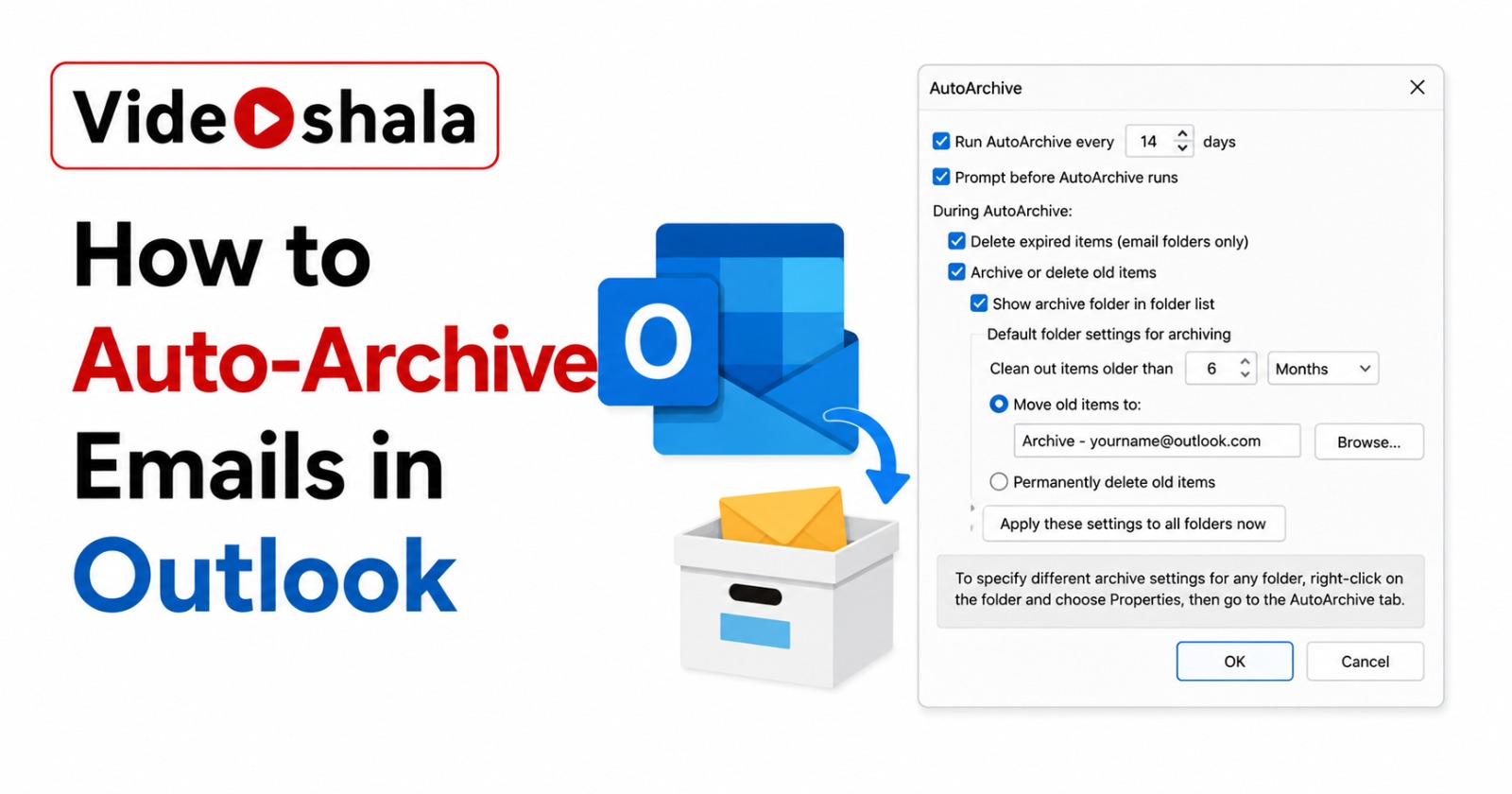
- The dialog opens fully greyed out. Tick Run AutoArchive every N days to enable everything else.
- Set the frequency. The default is 14 days. You can choose anything from 1 to 60 days. Weekly (7 days) is a good balance because it processes smaller batches and runs faster than monthly.
- Configure the remaining options (explained in detail below).
- Click OK to save. AutoArchive now runs on your chosen schedule.
Every AutoArchive setting explained
The dialog has several options that are easy to misread. Here is what each one actually does.
| Setting | What it controls |
|---|---|
| Run AutoArchive every N days | The schedule. 1 to 60 days. Lower numbers process smaller batches and run faster. Use a low number (1 to 5) if you mainly want to clean Deleted Items and Junk. |
| Prompt before AutoArchive runs | Shows a reminder so you can cancel a run if it would interrupt you. Useful while you are still tuning settings, annoying once they are stable. |
| Delete expired items (email folders only) | Removes messages past their expiry date. This is separate from archiving. Leave it off unless you set expiry dates on mail. |
| Archive or delete old items | The main toggle that turns on the actual archiving behaviour. If this is off, only expired items get touched. |
| Clean out items older than | The age threshold. Anything from 1 day to 60 months. Six months is a sensible default for most people. This is the single most important setting. |
| Move old items to | The destination .pst file. Default is archive.pst in your Documents folder. You can point this anywhere or create a new file. |
| Permanently delete old items | An alternative to moving. Old items are deleted instead of archived, bypassing the Deleted Items folder entirely. Avoid this unless you are certain you will never need the mail. |
| Show archive folder in folder list | Displays the Archive .pst in your navigation pane so you can browse archived mail easily. Recommended on. |
Where AutoArchive stores your mail
AutoArchive creates a single Outlook Data File the first time it runs. The default location is:
C:\Users\YourUserName\Documents\Outlook Files\archive.pst
This file lives only on that one computer. It is not synced to other devices, not stored on the server and not backed up automatically. This is the big tradeoff with AutoArchive: it frees mailbox space, but it ties your old mail to one physical machine. If that drive fails or the .pst is deleted, the archived mail is gone unless you backed up the file yourself. Copy the archive.pst to an external drive or cloud folder periodically if the mail matters.
Per-folder AutoArchive rules
The global setting applies to every folder, but you often want different rules per folder. Keep Sent Items for a year but clear Deleted Items weekly, for example.
- Right-click the folder you want to customise in the folder list.
- Select Properties.
- Go to the AutoArchive tab.
- Choose Archive this folder using these settings and set a custom age, destination or the delete option.
- Click OK. That folder now overrides the global rule.
By default, Outlook applies a six-month aging period to mail folders. Notably, the Deleted Items folder defaults to permanently deleting old items rather than archiving them, so check that folder's settings if you are relying on Deleted Items as a safety net.
The modified-date gotcha
AutoArchive does not always use the date you expect. For email, it looks at the received date or the last modified date, whichever is later. If you regularly open, move or edit old messages, that updates the modified date and Outlook keeps treating the mail as "recent," so it never gets archived.
The fix is a registry key called ArchiveIgnoreLastModifiedTime, which forces AutoArchive to use the received date only. This is an advanced step and editing the registry carries risk, so only attempt it if old mail genuinely refuses to archive. Microsoft documents the exact key path in their AutoArchive settings documentation.
New Outlook: the Sweep-rule workaround
New Outlook has no AutoArchive, but Sweep rules cover the most common use case: automatically moving old mail from a specific sender out of your inbox.
- In New Outlook, right-click a message from the sender you want to manage.
- Select Sweep.
- Choose a rule, for example Always move messages older than 10 days from this sender to Archive.
- Confirm. The rule runs on the server from now on.
The big advantage over AutoArchive: Sweep rules run on Microsoft's servers, so they keep working even when Outlook is closed. The limitation: Sweep moves mail into the in-mailbox Archive folder, not a separate local file, so it does not reduce your overall mailbox quota the way Classic AutoArchive does. For genuine mailbox-size relief in New Outlook, you need a server-side retention policy set by your IT admin. Failing that, you switch back to Classic.
AutoArchive versus a true backup
People often treat AutoArchive as a backup. It is not one. Archiving moves mail; it does not duplicate it. Once an email is in your archive.pst, that is the only copy and it sits on one local drive. A real backup means a second copy stored somewhere else.
If your goal is to keep a safe copy of important mail rather than just declutter the inbox, you want an actual export or backup tool, not AutoArchive. Our guide on retrieving old emails in Outlook 365 covers recovering mail you thought was lost. The accessing archived emails guide shows how to open and search an archive.pst once AutoArchive has built one.
Quick recommendations
To skip the analysis paralysis, here is what to pick for the common situations.
- Personal mailbox getting full, you use Classic Outlook: set AutoArchive to run weekly, clean out items older than six months, move to archive.pst. Back up that .pst occasionally.
- You just want a tidy inbox, size is not an issue: use the Archive button or Backspace key manually. No AutoArchive needed.
- You are on New Outlook and cannot switch: use Sweep rules for the senders that clutter your inbox most. Accept that mailbox size will not shrink.
- Work or business account with Exchange: ask your IT admin whether Online Archive is available. It is the cleanest option and runs server-side.
For more Outlook control, see our guides on fixing Outlook search, recalling a sent email and adding a signature in Outlook.