WhatsApp's Google Drive backup is the single most important feature you can enable on an Android phone. Without it, every chat, photo, voice note and shared document from the last decade disappears the moment your phone breaks, gets stolen or runs out of storage. With it set up correctly, you can pick up any new Android phone, install WhatsApp, scan the restore prompt and have your entire chat history back in 10 minutes.
The catch nobody talks about in 2026: WhatsApp backups now count against your 15GB Google Drive quota. They have since early 2024. That single change means the casual "enable and forget" advice from older guides is no longer enough. You need to manage backup size, pick what to include and decide whether the free Google plan is still enough or you need Google One. This guide covers the full setup, the size management nobody else explains and the iPhone workaround (because direct Google Drive backup from iOS does not exist).
The 15GB reality (read this first)
Until early 2024, WhatsApp backups to Google Drive were free and uncapped. You could have 50GB of backups sitting in your Google account without it touching your storage quota. WhatsApp and Google ended that arrangement in stages: beta users in December 2023, then all Android users rolled into the change through the first half of 2024.
As of 2026, every byte of your WhatsApp backup is counted against the same 15GB free pool shared with Gmail and Google Photos. For most Indian users with three to five years of chats, photos and shared videos, the backup is 5GB to 12GB. Add Gmail and Google Photos to that and the free quota is gone.
Set up Google Drive backup on Android
The whole setup takes two minutes. You need WhatsApp installed and signed in, a Google account on the device and a working internet connection.
- Open WhatsApp on your Android phone.
- Tap the three vertical dots in the top-right corner.
- Tap Settings.
- Tap Chats.
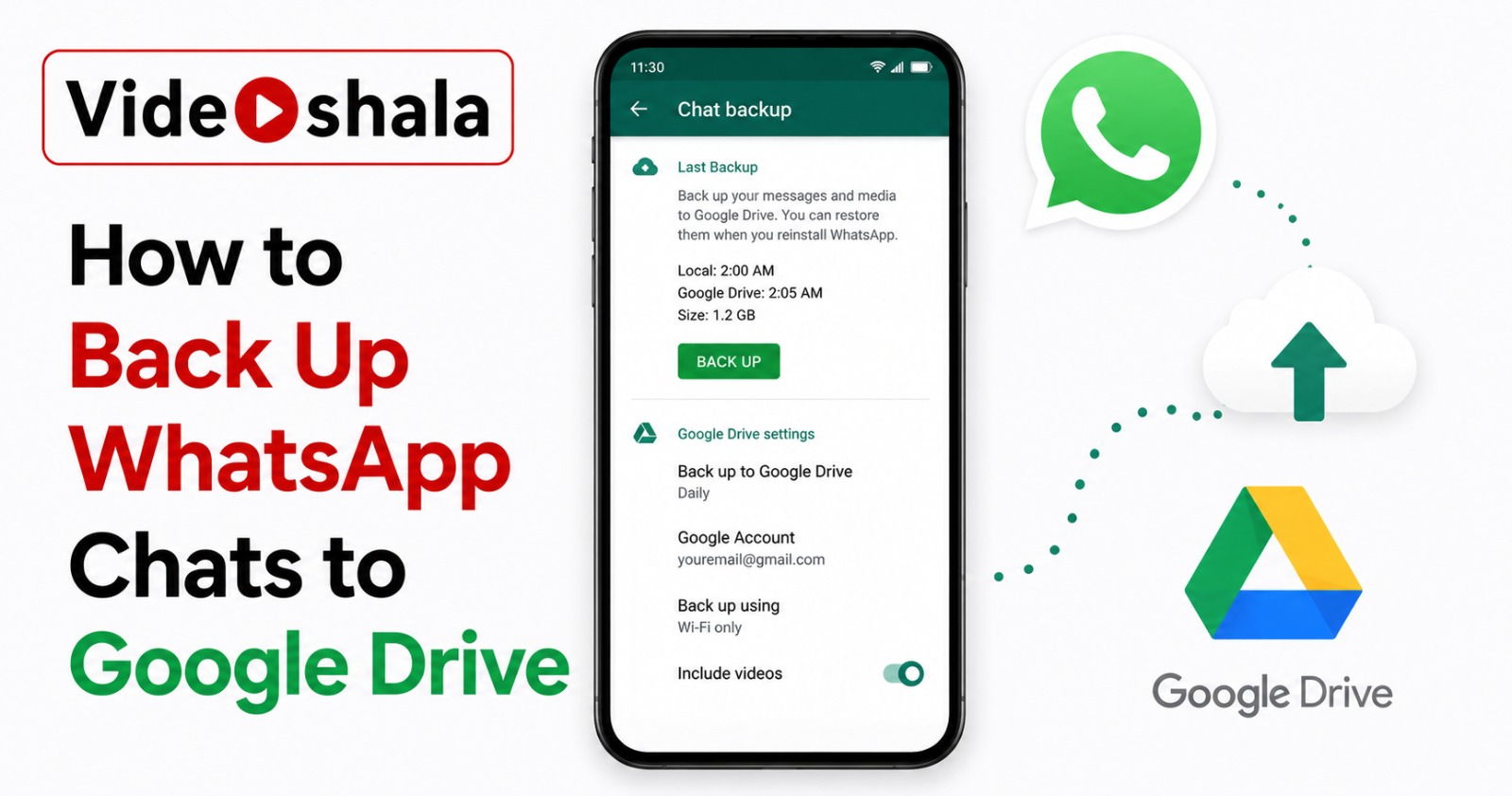
- Tap Chat backup.
- Under Google Drive settings, tap Back up to Google Drive.
- Pick a backup frequency: Daily, Weekly, Monthly or Only when I tap Back Up. Daily is recommended for most users.
- Tap Account and choose the Google account you want to use. Confirm any permission prompts that ask WhatsApp to access Drive.
- Tap Back up over and choose Wi-Fi only (recommended) or Wi-Fi or cellular.
- Decide whether to enable Include videos. Videos are typically 80% of a WhatsApp backup's size. Leave this off if you want a small backup. Turn it on if you want every reel and clip saved.
- Tap the green Back Up button to run the first backup immediately.
The first backup is the slowest because WhatsApp has to upload everything. Subsequent daily backups upload only what changed since yesterday, usually a few megabytes.
Turn on end-to-end encryption for the backup
By default, your WhatsApp backup on Google Drive is encrypted in transit but Google can technically read its contents at rest. The fix is end-to-end encryption, which makes the backup unreadable to anyone (Google, Meta or any future buyer or hacker) without your password, key or passkey.
- In Settings, Chats, Chat backup, tap End-to-end encrypted backup.
- Tap Turn on.
- Choose how you want to lock the backup. Three options:
- Passkey (most convenient, rolling out since October 2025). Uses your phone's fingerprint or face unlock. No password to remember.
- Password. Pick something you will remember in two years. WhatsApp cannot reset this for you.
- 64-digit encryption key. Maximum security but you must save the key in a password manager. Lose it and the backup is gone forever.
- Confirm the choice. WhatsApp re-encrypts the existing backup, which takes a few minutes.
Reducing backup size
Backups frequently push users past the 15GB free quota. Three knobs control the size.
| Action | Typical size impact |
|---|---|
| Turn off Include videos | Reduces backup size by 60 to 80% for most users. Videos are the biggest single contributor. Photos and chat text barely register. |
| Clear large chats (Settings, Storage and data, Manage storage) | WhatsApp shows the chats and forwarded media taking the most space. Deleting a single forwarded 200MB video from 50 group chats frees up 10GB. |
| Delete the old backup before running a new one | WhatsApp keeps only one backup at a time. Deleting the existing file in Google Drive and starting fresh sometimes helps clear orphan data. |
| Switch to monthly backups instead of daily | No size impact (backup size depends on data, not frequency). But reduces daily mobile data consumption if you cannot use Wi-Fi only. |
Check your current backup size at Settings, Chats, Chat backup. The screen shows "Last backup: 4.2 GB" or similar. If yours is above 8GB, expect to hit quota limits soon.
Wi-Fi versus cellular data backup
WhatsApp's default is Wi-Fi only. There is a good reason for that default. A 5GB backup over a typical Indian mobile plan with 1.5GB daily limit will exhaust your data in one day and continue eating into the next two. Turning on cellular backup makes sense only if you have unlimited mobile data or a plan with enough headroom.
If you travel often and rarely connect to Wi-Fi, set the backup to Wi-Fi or cellular but pair it with Monthly frequency so it does not hammer your data every day. Weekly is a middle ground if your data plan is unlimited at night.
iPhone users: the honest answer
WhatsApp on iPhone cannot back up directly to Google Drive. Period. iOS does not let third-party apps write app-specific data to non-Apple cloud services in the way Android does. iCloud is the only direct option.
Workarounds that exist:
- Switch to Android for one backup cycle. Buy or borrow an Android phone. Use WhatsApp's Move chats to Android tool to transfer your chats over, run a Google Drive backup on the Android phone. Tedious but it works.
- Export individual chats as text files. Open a chat, tap the contact name, scroll down, tap Export chat. Save the resulting .txt file to Google Drive manually. Loses formatting, voice notes and reactions but preserves the message text.
- Use iCloud and accept it. If you have enough iCloud storage (50GB is around Rs 75 per month and 200GB is around Rs 219), iCloud backup works fine and integrates better with iOS. The downside is your backup lives in Apple's ecosystem, not Google's.
- Avoid most third-party tools. Tools advertising "iPhone WhatsApp to Google Drive backup" almost always just back up your chats to their own server first, then optionally push to Drive. Trust each one carefully before handing over WhatsApp data.
Restoring a backup on a new phone
The whole point of backups is restoration. The process is built into WhatsApp's first-time setup.
- Install WhatsApp on the new Android phone.
- Open the app and verify your phone number (the same number that was on the old phone).
- WhatsApp detects the Google Drive backup linked to that number and shows a Restore prompt.
- Sign in to the same Google account that holds the backup. The Google account must match.
- Tap Restore. WhatsApp downloads the backup, decrypts it (if you set up encryption, enter the password or passkey now) and rebuilds your chat history.
- Wait for the restore to finish. A 5GB backup typically takes 15 to 30 minutes over Wi-Fi.
Restoration must happen during the first-time setup. If you skip the restore prompt and start using WhatsApp on the new phone, you cannot go back and pull the backup later without uninstalling WhatsApp and starting over.
Common failure modes
| Problem | Cause and fix |
|---|---|
| Stuck on "Preparing backup" for over an hour | WhatsApp is indexing your local data. Keep the phone awake and plugged in. If still stuck after 3 hours, force-close WhatsApp, restart phone, try again. Last resort: clear WhatsApp cache (does not delete chats). |
| "Couldn't back up. Your Google Drive is out of space." | 15GB quota exhausted. Either delete files from Google Drive, clear old photos from Google Photos, turn off Include videos in WhatsApp. Last option: upgrade to Google One. |
| Backup runs but never completes (always shows yesterday's date) | Google account permissions revoked. Go to Account in Chat backup settings, sign out, sign in again. WhatsApp will re-request Drive access. |
| "Encryption key mismatch" during restore | You enabled end-to-end encryption with a different password or key than you remember. There is no recovery. The backup is unreadable. Start fresh. |
| Restore shows fewer messages than expected | The backup is older than your last messages on the source phone or messages were deleted before the backup ran. Check Settings, Chat backup on the old phone for the last backup date. |
| Old backup disappeared from Google Drive | Google deletes WhatsApp backups not updated in over a year. The deletion is permanent and cannot be reversed. Always create a fresh backup before switching phones. |
Privacy and security checklist
Before relying on this backup as your safety net, run through this list once:
- End-to-end encryption is on, ideally with passkey authentication (October 2025 onwards).
- If you used a password, you stored it somewhere durable (password manager, not Notes app).
- The Google account holding the backup has two-factor authentication enabled.
- You have run at least one successful manual backup, confirmed by checking the "Last backup" timestamp.
- The phone hosting WhatsApp itself has a screen lock (PIN, fingerprint or face).
- WhatsApp's own App lock (Settings, Privacy, App lock) is on for an extra layer.
For broader Google account hygiene, see our guides on enabling two-factor authentication and managing Google Calendar sharing permissions. Both apply the same logic of locking down what reaches your Google account.