Sharing a Google Calendar is genuinely a 1-minute task once you know where to click. The thing nobody tells you is that there are four different ways to share, four different permission levels and each combination has different security implications. Pick the wrong combination and you might accidentally expose your personal events to your whole company. Or share a public link that anyone can find via Google search.
This guide walks through every sharing method, what each permission level actually lets the other person do, the iPhone-app limitation that breaks most users' first attempt and how to stop sharing cleanly when you change your mind.
Four ways to share a Google Calendar
| Method | Best for |
|---|---|
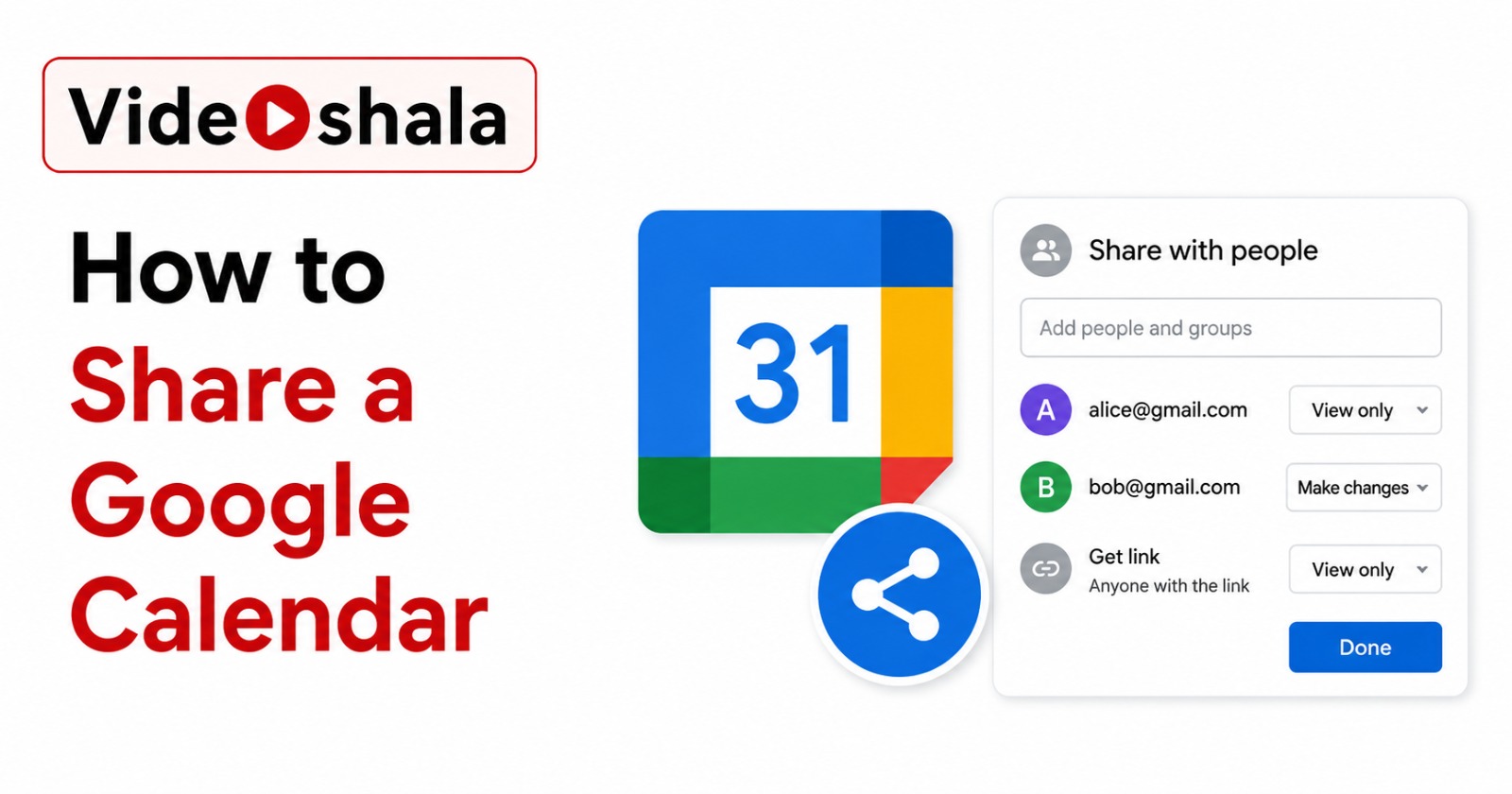
| Share with specific people | Sharing with one or a few named people. You pick their permission level individually. Most common. |
| Share with everyone in organisation | Workspace accounts. Lets every colleague at your company see your calendar. One permission applies to all. |
| Make available to public | Calendar visible to anyone with the link. Discoverable via Google search. Use only for genuinely public events (conference schedules, community calendars). |
| Share via ICS subscription URL | Sharing with people not on Google Calendar (Outlook, Apple Calendar, Thunderbird). One-way view with 4-24 hour refresh delay. |
The first method is what most people want. The other three exist for specific situations and are explained later in the guide.
Share with specific people (the standard method)
- Open calendar.google.com in a browser. (Sharing settings are NOT available in the iOS app. Use a desktop browser or the Android app.)
- In the left sidebar, find My calendars. Hover over the calendar you want to share.
- Click the three-dot menu that appears, pick Settings and sharing.
- In the left menu of the settings page, click Share with specific people or groups.
- Click Add people and groups.
- Type the email address of the person you want to share with.
- Pick a permission level from the dropdown (see the next section for what each means).
- Click Send.
The recipient gets an email titled "[Your name] has shared a calendar with you". They click the link in the email to add the calendar to their Google Calendar. The calendar then appears in their Other calendars sidebar.
The four permission levels (and what each one actually lets them do)
| Permission level | What they can do |
|---|---|
| See only free/busy (hide details) | See blocks of time when you are busy. Cannot see event titles, locations, descriptions or attendees. Good for sharing availability with vendors or extended family. |
| See all event details | See every event with full details: title, time, location, description, attendees. Cannot edit anything. Good for sharing with a manager or assistant who needs visibility. |
| Make changes to events | Above plus add new events, edit existing events, delete events. Cannot share your calendar with others. Good for a personal assistant. |
| Make changes and manage sharing | Full control. Above plus they can change permissions and share your calendar with other people without telling you. Essentially co-owner. Risky. |
Pick the lowest level that works. Most users default to See all event details when free/busy would actually be enough. The "Make changes and manage sharing" level is rarely the right answer for anyone except a trusted assistant who manages your bookings end-to-end.
Share with everyone in your organisation (Workspace only)
If you are on Google Workspace (a paid corporate account), you can let every colleague see your calendar without listing them individually.
- Open Settings and sharing for the calendar (same path as above).
- Scroll to Access permissions for events.
- Tick Make available for [your company name].
- Pick a permission level from the dropdown. Choose See only free/busy or See all event details. Higher levels are not available for org-wide sharing.
Many Workspace organisations set this by default through admin policy, in which case your colleagues already see your free/busy without you doing anything. Check by going to a colleague's name in Find a time view: if their busy blocks show, sharing is already on.
Make a calendar public (be very careful)
A public calendar is visible to anyone who has the URL and is also indexed by Google Search. Use this only for genuinely public schedules: a meetup calendar, a school's term dates, a public service schedule.
- Open Settings and sharing.
- Scroll to Access permissions for events.
- Tick Make available to public.
- Pick the detail level (free/busy or all details).
- Google will warn you that the calendar is now public. Confirm.
- Scroll to Integrate calendar to get the public URL to share.
Share via ICS link (for non-Gmail users)
If the person you want to share with uses Outlook, Apple Calendar, Thunderbird or any other non-Google calendar, the only way to share is the ICS subscription URL.
- Open Settings and sharing for the calendar.
- Scroll to Integrate calendar.
- Find Secret address in iCal format. Click the copy icon.
- Send that URL to the recipient through email or message.
The recipient adds it as a subscription in their calendar app. Steps differ by app: in Outlook it is Add calendar > Subscribe from web. In Apple Calendar it is File > New Calendar Subscription. The recipient sees your events but cannot edit them. Updates propagate to their calendar within 4-24 hours, sometimes longer.
For a full walkthrough of the Outlook side, see our guide on syncing Outlook calendar with Google Calendar, which covers both directions of ICS subscriptions plus the paid two-way sync options.
The iOS app limitation
This catches many users on their first attempt. Calendar sharing settings are NOT in the Google Calendar app for iPhone or iPad. There is no Settings and sharing option, no Share with specific people, nothing. Apple users have to either:
- Open Safari, go to calendar.google.com, tap the Aa icon and pick Request desktop website, then share from there.
- Use a desktop browser on a Mac or PC.
- Hand the phone to someone with Android (the Android app does have full sharing settings).
The desktop-web path on Safari works but is fiddly on a small screen. The cleaner approach is to just share from a laptop the first time you set up the share. After that, the recipient sees the calendar on their devices regardless of platform.
Hide specific events from people you share with
By default, every event on a shared calendar uses the calendar's permission level. So if you shared with See all event details, every event including the dentist appointment is visible. To hide specific events, mark them as Private.
- Open the event you want to hide.
- Click the pencil icon to edit.
- Scroll down to Default visibility.
- Change to Private.
- Save.
Private events show as a generic busy block to anyone except people with Make changes or higher permission. The block still shows that you are unavailable but the title and details are hidden.
Stop sharing a Google Calendar
Remove a specific person
- Settings and sharing > Share with specific people.
- Find the person's name in the list.
- Click the X next to them.
- Access revokes immediately.
Stop org-wide or public sharing
- Settings and sharing > Access permissions for events.
- Untick Make available for organisation or Make available to public.
Invalidate the secret ICS URL
If you previously shared the Secret iCal URL with anyone, removing the person from your share list does not invalidate the URL. Anyone who saved the URL still has access. To kill it, go to Integrate calendar and click Reset next to the secret address. Google generates a new URL and the old one stops working. You will need to re-share the new URL with anyone who legitimately still needs access.
Common problems and quick fixes
| Problem | Fix |
|---|---|
| Person says they cannot see the shared calendar | They need to click the link in the invitation email. Without that click, the calendar does not show on their side. Resend if email lost. |
| Share option is missing entirely | You are on the iPhone app. Use a desktop browser or Android app instead. |
| Workspace account: cannot share outside the company | Admin policy blocks external sharing. Ask IT to whitelist the recipient or use the ICS link as a workaround. |
| Cannot find "Make available to public" option | Workspace admin disabled public sharing for security. Cannot override at user level. |
| Shared calendar shows wrong time zone | Time zone of events follows the calendar owner. Recipient sees them in their own local time zone automatically. |
| Added person but they have wrong permission | Remove and re-add with correct level or change the dropdown next to their name and refresh. |
Quick recommendation by situation
For a manager who needs to see when you are free: See only free/busy. Nothing more.
For an assistant who books your meetings: Make changes to events. Not the higher level.
For a partner who wants to see your work schedule: See all event details. Mark private appointments as Private.
For sharing with people on Outlook or Apple Calendar: ICS Secret URL, one-way only, accept the 4-24 hour refresh delay.
For a community calendar everyone should be able to find: Make available to public, all event details.
If you also need the reverse direction (seeing a non-Google calendar inside Google Calendar), our guide on syncing Outlook and Google Calendar covers both the free one-way method and the paid two-way options. For email-side companion features, see our guides on scheduling emails in Gmail and setting up email forwarding.